Settings that fit your task
Choose pages, order, or output settings for the document you need today.
Free online PDF tool
Start a visible numbering sequence where you need it and inspect existing footers before export.
Free to use. No account. Files processed in your browser.
Processed in your browser
Choose where numbering begins and what it says, then inspect footers and odd/even placement.
Add one PDF
Up to 30 MB and 200 pages; the file is processed in your browser.
No PDF selected.
For the third PDF page to show 1, set Start to 3 and First printed number to 1. Skip cover moves the start to at least page 2.
Compare the original and preview before export. New numbers may cover an existing footer, signature, stamp, or annotation. Existing numbers are not removed, and PDF viewer page labels are not changed. Editing a signed PDF may invalidate its signature.
Add a PDF to plan numbering.
Limits: encrypted PDFs and interactive forms are unsupported. Chinese text embeds a complete font and may make the result much larger. In Page X of Y, Y is the final printed number in the numbered sequence.
Clear steps and useful tools, from choosing your files to getting the job done.
Choose the numbered range, starting number, and odd or even page positions. Check footers before saving.
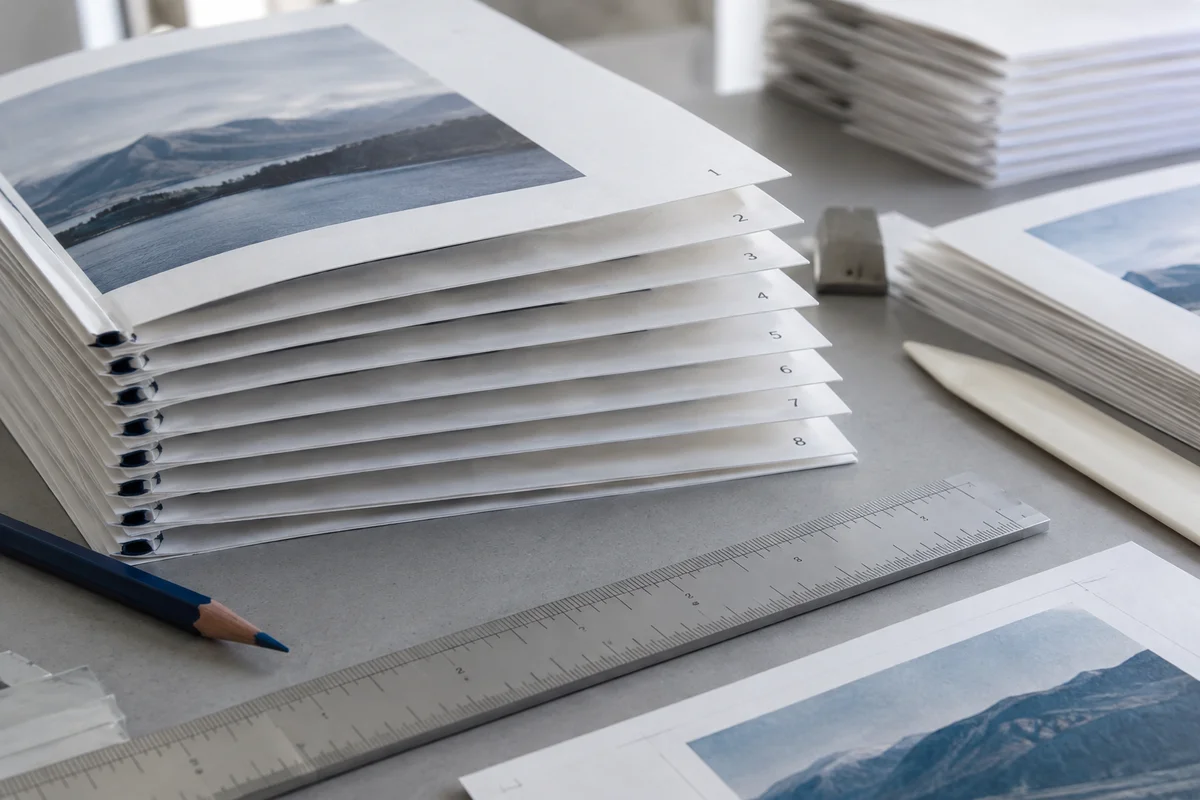
Keep reading, printing, or sharing after export. Tools produce PDFs, images, text, spreadsheets, or ZIP files as appropriate. Review important documents in your usual reader.
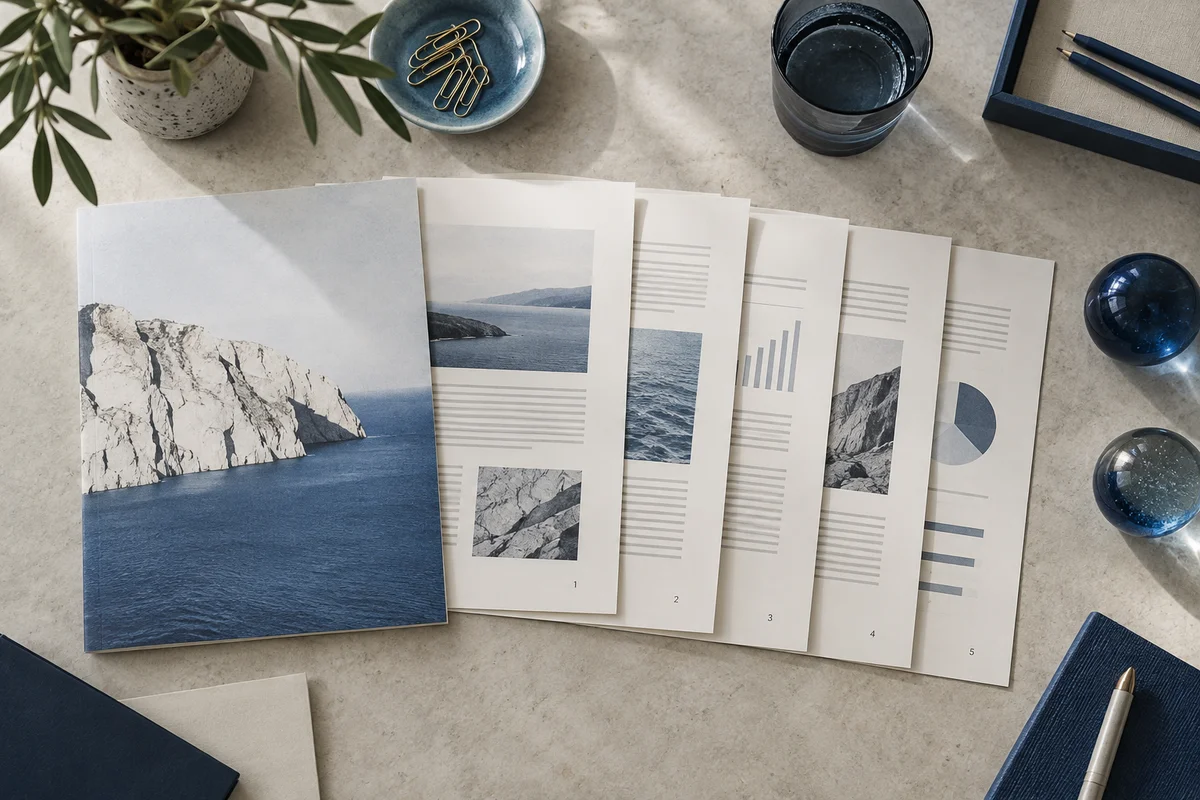
No app to install and no account to create. Use a computer, tablet, or phone, with file-size and page limits clearly listed in each tool.
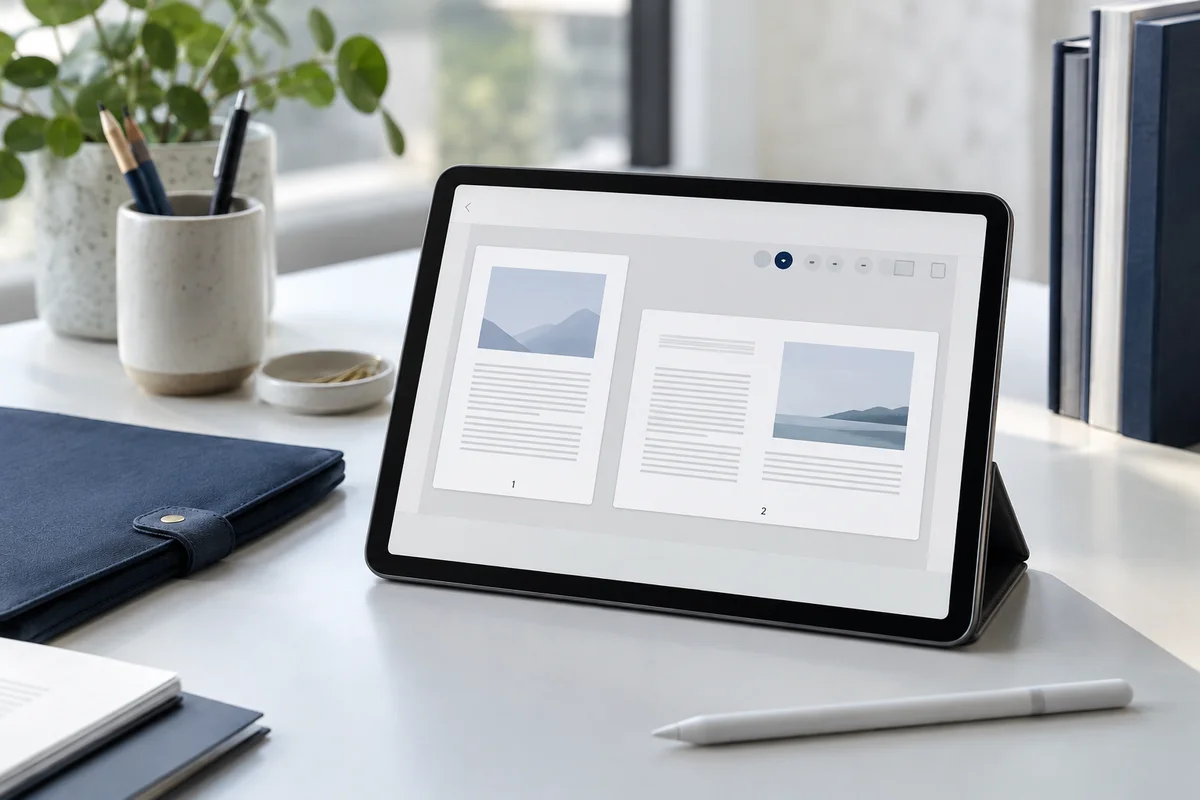
Focused on one task, with a clearer path from start to finish.
Choose pages, order, or output settings for the document you need today.
Use the preview, processing summary, or output checks available in the tool.
Your chosen documents are read and processed in this browser session.
Save a new file when processing finishes, in the format provided by your tool.
Each operation creates a new result without overwriting your originals.
Use a computer, tablet, or phone. File and page limits are listed in the tool.
No account, no installation. An easier flow for everyday documents.
Find the task you need and select PDFs or images from your device. Each tool lists its supported files and size limits.
Set pages, order, size, or style. Review the page preview or processing summary available in your chosen tool.
Create your result in the browser and save it to your device. Reopen important documents to review content and page order.
Practical instructions, file limits, and what to check in your result.
A combined report, lecture pack, or proposal can be hard to refer to when the exported PDF has no numbers on its pages. This tool adds visible numbering to a selected part of one PDF and saves a new copy. You choose the first physical page to mark, the first number to display, and an optional last page. The sequence can leave a cover unnumbered, start at 1 on the third sheet, or continue from a number used in an earlier volume. You can also choose the position separately for odd and even physical pages.
The file is processed in your browser. Its contents are not sent to a document processing server by this workflow, although normal code, styles, and optional font assets load from this site's host. The tool writes numbers onto the visible page surface. It does not edit the PDF's internal page labels, which some readers show in their sidebar or page navigation field. That distinction matters if the original document has Roman numerals, section labels, or a cover counted differently by a reader.
The physical page is its position in the PDF file, counted from 1. The printed number is the text this tool adds. They can be different. Suppose a PDF has a cover, a contents page, and a report beginning on its third physical page. Enter 3 for Start at physical page and 1 for First printed number. The first two sheets remain untouched; the third shows 1, the fourth shows 2, and so on. If only the cover should be skipped, tick Skip cover with the start left at 1. That moves the effective first marked page to physical page 2.
Skip cover is a convenience control, not a second numbering system. If Start is already 3, ticking it does not move the start again. It only ensures page 1 is not marked. A one-page PDF has no page after the cover, so a plan that skips its sole page is rejected. The preview plan shows the effective first and last numbers before any file is changed. Use the optional End field if an appendix should remain unnumbered or be treated in another pass.
Number only prints the sequence as 1, 2, 3 by default. A zero padding width of 3 turns those into 001, 002, 003. This can be useful for a packet whose filenames or references use fixed width identifiers. Padding affects the current printed number, not the PDF's position. The prefix and suffix wrap the label. For example, a prefix Appendix A- can create Appendix A-001. Each field is limited to one line and 30 characters so it cannot quietly add a paragraph into the margin.
“Page X of Y” uses wording in the chosen page language and includes the last printed number as Y. If a three-page sequence begins with 1, it reads “Page 1 of 3” through “Page 3 of 3.” If it begins with 5, it reads “Page 5 of 7” through “Page 7 of 7.” This is a visible numbering convention, not a claim that the source PDF contains seven physical pages. Check the example in the plan when continuing a sequence from a previous document. The total in this mode is not automatically the original file's full page count when a cover or appendix is excluded.
A double-sided handout often places the page number toward the outer edge of each sheet: bottom right on odd physical pages and bottom left on even physical pages. These are the defaults. You can choose top or bottom left, center, or right independently for each parity. The distinction uses the physical PDF page position, even if the visible numbering begins at 1 on page 2. This makes positions predictable when the cover stays in the file. It may not match the parity of the printed label, so inspect the plan before a double-sided print job.
Margins are measured in millimeters from the visible page edge, while font size uses points. Side and top/bottom margins can be set from 3 to 50 mm. The placement calculation uses each page's crop area and rotation, rather than assuming every sheet is portrait A4. A landscape table and a rotated scan can therefore put their footer in the corresponding visible corner. A very long prefix, large font, or wide margin may not fit; the tool reports that page instead of knowingly drawing the label outside it.
Adding a new number does not remove one that is already printed on the PDF page. If the source has a footer reading 6 and the new sequence adds 1 in the same area, both may be visible or overlap. Preview the before and after pages closely, especially the first and last page in the range and any page with a citation, signature, document code, or stamp near the edge. You can move the new label to a top corner, change margins, shrink the type, or leave some pages outside the range. The tool does not automatically detect an existing footer or decide which label is authoritative.
The preview gate asks for each representative combination of visible page dimensions, quarter-turn rotation, and physical odd or even position. That catches many placement mistakes before export, but two same-size pages may have different content. A footer could appear only on the final sheet, and an annotation could occupy an otherwise empty margin. You can preview another numbered physical page by entering its page position. After export, reopen the downloaded PDF and inspect every page that matters. The program checks that the result opens, the page count is unchanged, and crop boxes and rotations still match; it cannot judge whether a person can read a crowded footer.
In the Chinese version, the total format reads “第 1 页,共 20 页.” A Chinese prefix or suffix also needs a font containing those glyphs. The tool embeds a Noto Sans CJK font when the generated labels include non-ASCII characters and checks for unsupported glyphs before saving. That avoids a silent output full of missing-character boxes. Some emoji and uncommon scripts are not in the font and will be rejected. If you use the English version with a plain ASCII label, it uses a smaller built-in PDF font instead.
Embedding the full CJK font can add roughly fourteen megabytes to the output, even for a short sequence. Reopen the PDF in another reader when a Chinese name, unusual symbol, or formal filing reference must appear exactly. A browser preview alone is not a guarantee that every downstream printing or document management system will render unusual PDF features identically. The page number is selectable text where the font supports it, but the tool does not convert images in the source into searchable text.
This version accepts one PDF up to 30 MB and 200 pages. Encrypted or damaged files are not treated as a successful export. Interactive form PDFs are refused because adding content can complicate field appearance and document behavior. The output retains page count, visible page boxes, and quarter-turn rotations, but complex PDF structures such as bookmarks, annotations, layers, scripts, tags, and attachments deserve a manual check. Editing a digitally signed document can invalidate its certificate signature, even if the page still looks correct.
The source file is not overwritten. A cancelled task does not offer a partial result; you can adjust settings and try again. This tool adds visible numbers only. It does not update reader page labels, create a table of contents, remove old page numbers, or set up an advanced legal filing sequence. A visible number cannot redact information underneath it. If a source page already contains private details near a footer, use a proper redaction process before sharing rather than hiding them behind another number.
Tick Skip cover, or set Start at physical page to 2. Keep First printed number at 1 if the second sheet should display 1. The cover remains in the output without a new number.
Set Start at physical page to 3 and First printed number to 1. Leave End blank to continue through the last sheet. The plan will show the first and last labels before you generate the file.
Choose Page X of Y. If the numbered sequence has 20 pages and starts at 1, the first label is “Page 1 of 20.” In the Chinese page the format uses Chinese wording. A different starting number changes Y to the final printed number.
Yes. Choose an odd physical page position and an even physical page position separately. Preview both parities, especially if the document will be printed double-sided with a cover.
The number drawn on the page and the PDF's internal Page Labels are separate. This tool changes the visible page only. A reader may continue to show its original label in a toolbar or sidebar.
No account. No app to install.
Choose your files, adjust the settings, and download the result you need.
Free to use · Files processed in your browser