Settings that fit your task
Choose pages, order, or output settings for the document you need today.
Free online PDF tool
Place new notes, lines, outlines, and images on existing pages, with editing and preview before export.
Free to use. No account. Files processed in your browser.
Processed in your browser
Build a list of marks, preview affected pages, then save a new PDF.
Add one PDF
Up to 30 MB and 200 pages; processed in your browser.
No PDF selected.
This adds new content; it does not arbitrarily edit or remove original PDF text. A white box over old text is not secure redaction. Check whether new marks cover signatures, footers, forms, or annotations. Editing a signed PDF may invalidate its signature.
Add a PDF and at least one mark to see the plan.
Limits: up to 20 marks, including at most 4 images. Encrypted PDFs and interactive forms are unsupported. CJK text embeds a complete font and may increase file size.
Clear steps and useful tools, from choosing your files to getting the job done.
Add multiline text, lines, rectangle outlines, and images to selected pages. Adjust or undo marks before export.
Keep reading, printing, or sharing after export. Tools produce PDFs, images, text, spreadsheets, or ZIP files as appropriate. Review important documents in your usual reader.
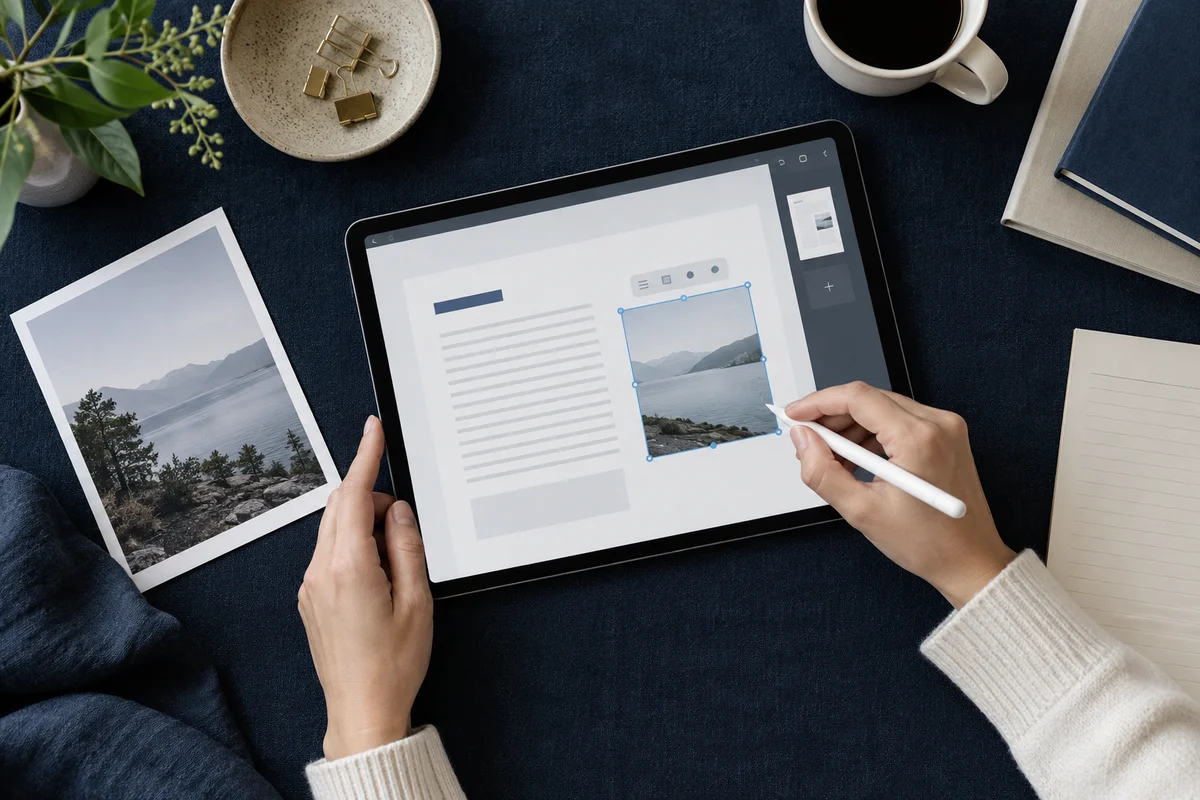
No app to install and no account to create. Use a computer, tablet, or phone, with file-size and page limits clearly listed in each tool.
Focused on one task, with a clearer path from start to finish.
Choose pages, order, or output settings for the document you need today.
Use the preview, processing summary, or output checks available in the tool.
Your chosen documents are read and processed in this browser session.
Save a new file when processing finishes, in the format provided by your tool.
Each operation creates a new result without overwriting your originals.
Use a computer, tablet, or phone. File and page limits are listed in the tool.
No account, no installation. An easier flow for everyday documents.
Find the task you need and select PDFs or images from your device. Each tool lists its supported files and size limits.
Set pages, order, size, or style. Review the page preview or processing summary available in your chosen tool.
Create your result in the browser and save it to your device. Reopen important documents to review content and page order.
Practical instructions, file limits, and what to check in your result.
A PDF may be easy to read but impossible to type into. A form might have no interactive fields, a scanned page might be only an image, or a report may need one more date or explanation after export. This tool places new visible content on the existing PDF pages. It can add a multiline note, a simple line, a rectangle outline, or a JPG or PNG image. You can target one physical page, every page, or an explicit page range. The result is a new PDF that you download after checking a before and after preview.
The processing happens in your browser. The PDF and chosen image are not submitted to a document processing server by this workflow, though site code and the optional font load from this site's host. The original file is not overwritten. This is a practical way to write on a PDF or add a text box to a PDF when you need to supplement a document. It does not promise unrestricted editing of its original paragraphs or a conversion of a scanned image into editable words.
The first coordinate is measured from the visible left edge and the second from the visible top edge. Entering 15 and 20 starts the mark around 15 percent across and 20 percent down. These values adapt to a page's visible crop area, which is useful when a packet mixes A4, Letter, landscape, and rotated sheets. The tool transforms placement for quarter turn rotations instead of assuming every PDF page is upright portrait paper. It still cannot know where a person's signature, old footer, or essential diagram sits. Always inspect the before and after preview.
A text block uses a top left starting point. The tool checks the rendered lines against the page boundary; it reports an error when a block does not fit instead of silently clipping it. You can reduce the font, shorten a line, or move the starting point. Text is limited to 8–72 point type. For plain Latin text choose sans serif, serif, or monospace. Non ASCII characters use the embedded CJK font when available. Color applies to the new letters, not to the source document.
One mark can be applied to a single physical page, the whole document, or a range such as 1–3,5. Physical page 1 is the first sheet in the PDF file. A copied note on all pages gets the same relative left and top position on each sheet, while its actual point coordinates adjust to that page's size and rotation. If a particular page needs a different message, create a second mark for that page. Marks are drawn in the order shown in the saved list; later content may visually sit on top of earlier content where they overlap.
The saved list is also the editing surface. Choosing Edit puts a mark's values back into the controls, so you can move it or change its wording before saving. Delete removes it from the planned output. Undo restores the previous list state, including an edit or deletion. Reset marks clears the whole list, and an immediate undo can restore it. Any change clears the prior preview approval and download result. You must preview the new plan again before exporting so the downloaded file matches what you last saw.
A line has a start and an end, each set as a percentage of the visible page. Use it to underline a field, connect a label to an area, or draw a short separator. A rectangle is an outline with a width and height in percentages. Both use a chosen stroke color and a thickness between 0.5 and 10 points. The rectangle has no fill in this tool, so it will not create a solid white cover over old content. Neither shape is a semantic form field or a PDF annotation that someone can later fill in.
For a logo, stamp, or hand drawn signature image, choose a JPG or PNG. The image is displayed at a chosen fraction of the page width while keeping its aspect ratio. A transparent PNG can retain a transparent surrounding area. Each source image is limited to 10 MB and 10 megapixels; the PDF can contain at most four image marks. The browser checks and normalizes the uploaded image before the worker inserts it, including orientation information where the browser can decode it. Check the output in another PDF reader if color, transparency, or exact signature placement is critical.
A picture of handwriting makes a visible signature on a page. It does not create a certificate based digital signature, cryptographically identify the signer, or prove that the PDF has not changed. Requirements for a formal signature depend on the recipient and the process, so verify those separately. A signed source PDF can also lose the validity of its existing certificate signature when new page content is added. The tool does not preserve that validity or certify a modified document.
Keep the original source and review the saved copy before sharing it. If the added signature must appear beside a particular line, use the page preview to place the image and reopen the download at ordinary viewing size. A percent position can land differently when page sizes vary; use a page specific mark when one page requires exact alignment.
This tool adds new drawing instructions to the page. It does not locate an old paragraph, delete individual source letters, reflow surrounding lines, or reproduce the source font. Even when the new note visually covers a nearby area, the original PDF content can remain underneath and may still be extractable. A white shape or image placed over private data is not secure redaction. Use a proper redaction workflow that removes the underlying information if you need to share a sanitized file.
The same rule applies to scanned pages. A scan can show letters to a human while containing no selectable text. You can add a new typed note on top of that image, but the old scan is still an image. This tool performs no OCR and does not make the original printed words searchable. To change an original paragraph, use a document editor or an appropriate PDF editor with its own limits, then review the output carefully.
Before export, the plan identifies representative page layouts and mark combinations. Preview each one in paired original and marked PDF panes. The comparison helps catch an image that is too large, a line at the wrong edge, a text block over a diagram, or a mark applied to the wrong range. Pages of the same dimensions can still contain different material, so examine additional physical pages when needed. A preview is a placement aid; it cannot decide whether your note is factually correct or legally sufficient.
After drawing, the processor reopens the new PDF and checks that its page count, crop boxes, and rotations match the source. It reports a failure rather than offering a file that fails these basic checks. It does not guarantee that every bookmark, link, annotation, layer, script, tag, attachment, or unusual PDF structure behaves identically in every reader. Interactive forms and encrypted PDFs are deliberately unsupported. Non ASCII text embeds a complete CJK font, which may make even a short marked document much larger. Some uncommon glyphs and emoji are absent and are rejected instead of rendered as missing symbols.
Choose the PDF, add a multiline text mark, target its physical page, and set the visible position. Save the mark, compare the before and after preview, then download the new PDF. The text is added to the page surface; it does not turn the document into a fillable form.
No. You can place additional text, but this tool does not remove or reflow the original paragraph. Covering it visually does not remove the underlying data. Edit the source document or use a suitable editor for that task.
No. It is a visible image. A certificate based digital signature has identity and integrity properties that an image alone does not supply. Ask the recipient what form of signature they require.
Yes. Edit a saved mark's position, delete it, undo a change, or reset all marks. Every change requires a fresh preview before the new PDF can be created.
Inserted images add data, and Chinese or other supported non ASCII text embeds a full font. Reopen the saved file and confirm that its content and size suit the intended destination.
No account. No app to install.
Choose your files, adjust the settings, and download the result you need.
Free to use · Files processed in your browser