Settings that fit your task
Choose pages, order, or output settings for the document you need today.
Free online PDF tool
Adjust the visible boundary, compare before and after, then download a new file.
Free to use. No account. Files processed in your browser.
Processed in your browser
Preview before and after, then export a new PDF. Your source stays unchanged.
Add a PDF file
Local processing, no upload. Up to 30 MB and 200 pages.
No file selected.
Pages start at 1. Use 1-3,5 for a range. Odd and even use the original page numbers.
Choose a file to set the crop.
Limits: encrypted PDFs and interactive forms are unsupported. Cropping changes page boundaries, not hidden content; editing a signed file can invalidate its signature.
Clear steps and useful tools, from choosing your files to getting the job done.
Set margins or a rectangle, choose the affected pages, and compare the visible boundary before saving.
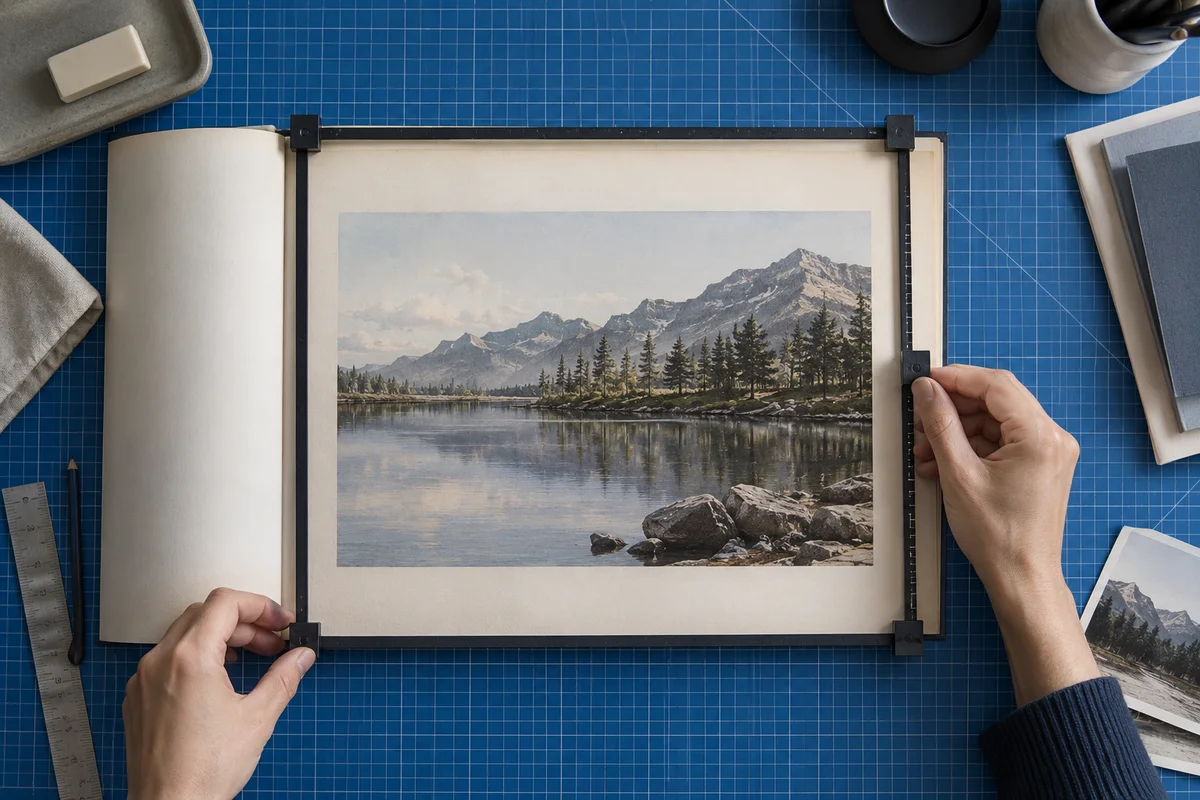
Keep reading, printing, or sharing after export. Tools produce PDFs, images, text, spreadsheets, or ZIP files as appropriate. Review important documents in your usual reader.
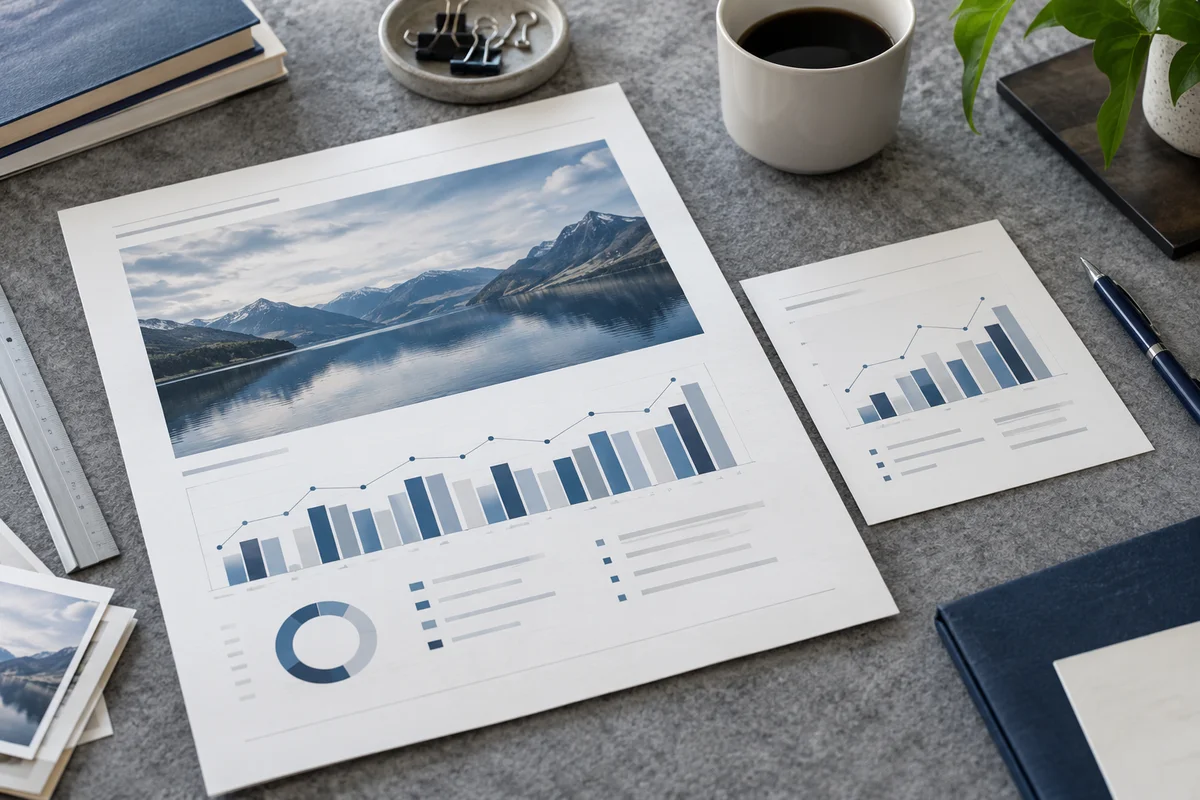
No app to install and no account to create. Use a computer, tablet, or phone, with file-size and page limits clearly listed in each tool.
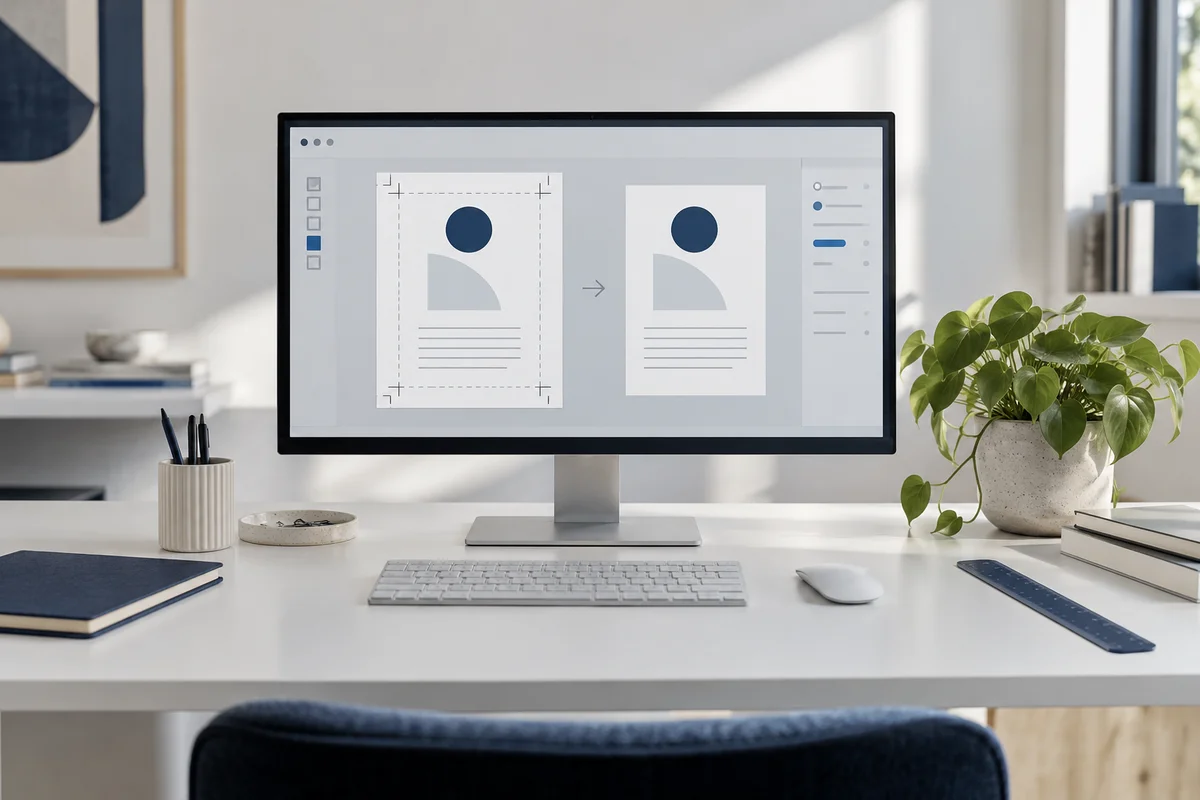
Focused on one task, with a clearer path from start to finish.
Choose pages, order, or output settings for the document you need today.
Use the preview, processing summary, or output checks available in the tool.
Your chosen documents are read and processed in this browser session.
Save a new file when processing finishes, in the format provided by your tool.
Each operation creates a new result without overwriting your originals.
Use a computer, tablet, or phone. File and page limits are listed in the tool.
No account, no installation. An easier flow for everyday documents.
Find the task you need and select PDFs or images from your device. Each tool lists its supported files and size limits.
Set pages, order, size, or style. Review the page preview or processing summary available in your chosen tool.
Create your result in the browser and save it to your device. Reopen important documents to review content and page order.
Practical instructions, file limits, and what to check in your result.
A PDF page can have a wide white border, a scanner edge, or an area that distracts from the main content. Cropping changes the portion of that page shown in a PDF reader. This tool lets you trim the top, bottom, left, and right margins, or define a rectangle to keep. You can apply the same setting to every page, one page, a custom page range, or different odd and even page groups. The original file stays on your device and is not overwritten. A new PDF is created only after you inspect a before-and-after preview.
This is a visual page-boundary operation. It does not shrink text, rescale an image, rearrange content, or automatically detect white space. If a scanned page has uneven margins, enter values after looking at the scan itself. The preview helps you judge whether a page number, caption, illustration, or annotation lies too close to the new edge. A single preview cannot prove that every page in a long document is safe, so inspect more than one representative page and review the finished PDF in a reader.
2-5,8, or separate odd and even settings. Page numbers are one-based and refer to the source PDF. In odd/even mode, page 1 is odd regardless of a printed page number inside the document.The margin method is useful when you know how much border to hide. Enter 10 mm at the left, for example, to move the visible left edge inward by 10 mm. The other three sides can use different values. An entry of zero leaves that side where it is. The measurements begin at the existing visible edge, not necessarily at the full MediaBox boundary of the PDF. This matters for a source document that was cropped previously: another crop trims further from what is currently visible.
Use small changes first. Printed folios and footnotes often sit close to the bottom edge. A scan may have a handwritten note in a margin, or an annotation may overlap the border. The tool checks that a proposed crop leaves a usable area, but it cannot identify which pixels or PDF objects are important to you. If the preview clips meaningful content, reduce the value on that side and preview again. Any change to the settings clears the previous preview approval and generated download link.
The rectangle method is useful when only a defined part of a page should be displayed. X measures right from the visible top-left corner, and Y measures down. Width and height describe the area to keep. If a page is visibly 200 mm wide and you set X to 20 mm with width 160 mm, the remaining visible right margin is 20 mm. Values that extend beyond the reference page or leave less than a minimal visible area are rejected before export.
A rectangle is not a permanent erase tool. The PDF still has underlying page content outside its new visible boundary. Some extraction tools, editors, and readers may find or restore material outside that boundary. If a document contains confidential information, use a dedicated redaction workflow that removes the content and verifies the result. Do not rely on cropping to hide names, account details, signatures, or other sensitive material before sharing.
A mixed PDF may contain A4 sheets, US Letter pages, landscape inserts, or scans at different sizes. Fixed mode applies the entered distance in the chosen unit to every targeted page. If you trim 10 mm on the left, every page loses 10 mm of visible width on that side. This can be appropriate for pages with a consistent physical printing margin, but a small page may lose a larger share of its content than a large page.
Proportional mode treats the first targeted page in each setting as a reference. If a 200 mm wide reference page loses 20 mm at the left, a 300 mm wide target page loses 30 mm there. Vertical values scale with visible page height. In rectangle mode, the rectangle is converted to top, bottom, left, and right proportions on the reference page, then applied to later pages. The page's visible orientation is respected, so a rotated page uses its displayed width and height. This can help with collections of related layouts exported at different sizes; it does not automatically align unrelated content.
For facing pages in a book scan, the inner and outer margins may alternate. Choose separate odd and even settings rather than forcing a single left margin on every page. Preview at least one page from each group, especially where a gutter shadow or page number changes sides. The tool requires a preview for each active group before enabling export, while still allowing you to preview additional pages.
The generated PDF writes a new CropBox for each selected page. A CropBox tells a PDF reader which page region to display or print. The file retains its MediaBox and original page content; the tool does not rasterize the pages or reflow text. It checks the output by reopening the PDF and comparing the page count, each changed CropBox, and rotation with the planned result. Pages outside your selection are left at their existing visible boundary.
Because the content is hidden rather than removed, file size may stay roughly the same. Bookmarks, internal links, comments, accessibility information, and digital signatures can have different behavior in different readers after editing a PDF. A comment anchored outside the visible region may no longer be easy to see, and changing a signed document can invalidate its certificate signature. Test any feature that matters in the downloaded file. This tool does not claim to repair those structures or certify the PDF for archival or regulated workflows.
Processing occurs in a browser worker using the file you selected. The page creates local preview and download links for the generated PDFs. Your document is not sent to a processing API by this tool. The website itself may still request its ordinary code, fonts, and styles, so local file processing is a narrower claim than offline availability. Large, complex scans can use substantial memory even when their saved file is below 30 MB. If the browser runs out of memory, try a smaller source document.
No. The crop boundary normally hides it in display and print views. The underlying content may remain recoverable or extractable. Use real redaction for sensitive information.
Select all pages, enter four margin values, preview representative pages, then create the cropped PDF. There is no automatic white-space detection in this tool. For varying layouts, use proportional mode or separate odd/even settings and inspect the result.
Yes. Choose one page or a range such as 3-6,9. Unselected pages retain their current visible page boxes. Recheck the source page numbers if the document's printed numbers differ from its actual PDF positions.
Usually not by much. The tool changes the visible page boundary without discarding hidden text or image data. A smaller download is not promised, and this is not a PDF compression tool.
Enter distances based on the direction you see on screen. The tool converts those visible directions to PDF page coordinates for quarter-turn rotations. Preview a rotated page before exporting because its content may have different margins from upright pages.
No account. No app to install.
Choose your files, adjust the settings, and download the result you need.
Free to use · Files processed in your browser