Settings that fit your task
Choose pages, order, or output settings for the document you need today.
Free online PDF tool
Turn the existing text layer into plain text you can review, copy, and edit.
Free to use. No account. Files processed in your browser.
Processed in your browser
Reads the existing text layer only; it does not run OCR on scanned images.
Add one PDF
Up to 30 MB and 200 pages.
No PDF selected.
Add a PDF to see the extraction plan.
Pages without a text layer are reported as having no extractable text, not as damaged. Columns, tables, and separate text boxes may come out in a different reading order. Review the result. No OCR or table-to-CSV conversion is included.
Clear steps and useful tools, from choosing your files to getting the job done.
Extract the existing text layer from chosen pages, review the result, and copy or download UTF-8 text. Scanned pages need separate OCR.

Keep reading, printing, or sharing after export. Tools produce PDFs, images, text, spreadsheets, or ZIP files as appropriate. Review important documents in your usual reader.
No app to install and no account to create. Use a computer, tablet, or phone, with file-size and page limits clearly listed in each tool.

Focused on one task, with a clearer path from start to finish.
Choose pages, order, or output settings for the document you need today.
Use the preview, processing summary, or output checks available in the tool.
Your chosen documents are read and processed in this browser session.
Save a new file when processing finishes, in the format provided by your tool.
Each operation creates a new result without overwriting your originals.
Use a computer, tablet, or phone. File and page limits are listed in the tool.
No account, no installation. An easier flow for everyday documents.
Find the task you need and select PDFs or images from your device. Each tool lists its supported files and size limits.
Set pages, order, size, or style. Review the page preview or processing summary available in your chosen tool.
Create your result in the browser and save it to your device. Reopen important documents to review content and page order.
Practical instructions, file limits, and what to check in your result.
A PDF can hold selectable words and still be awkward to quote, search across, or reuse in notes. This PDF to text tool reads the text already encoded on its pages and presents it as ordinary text. Choose every page, one physical page, or a page range, then review the result in the browser. You can copy it or download a UTF-8 TXT file. The workflow runs on your device in the browser; the selected PDF is not sent to a document processing API. Site code still loads from this site's host.
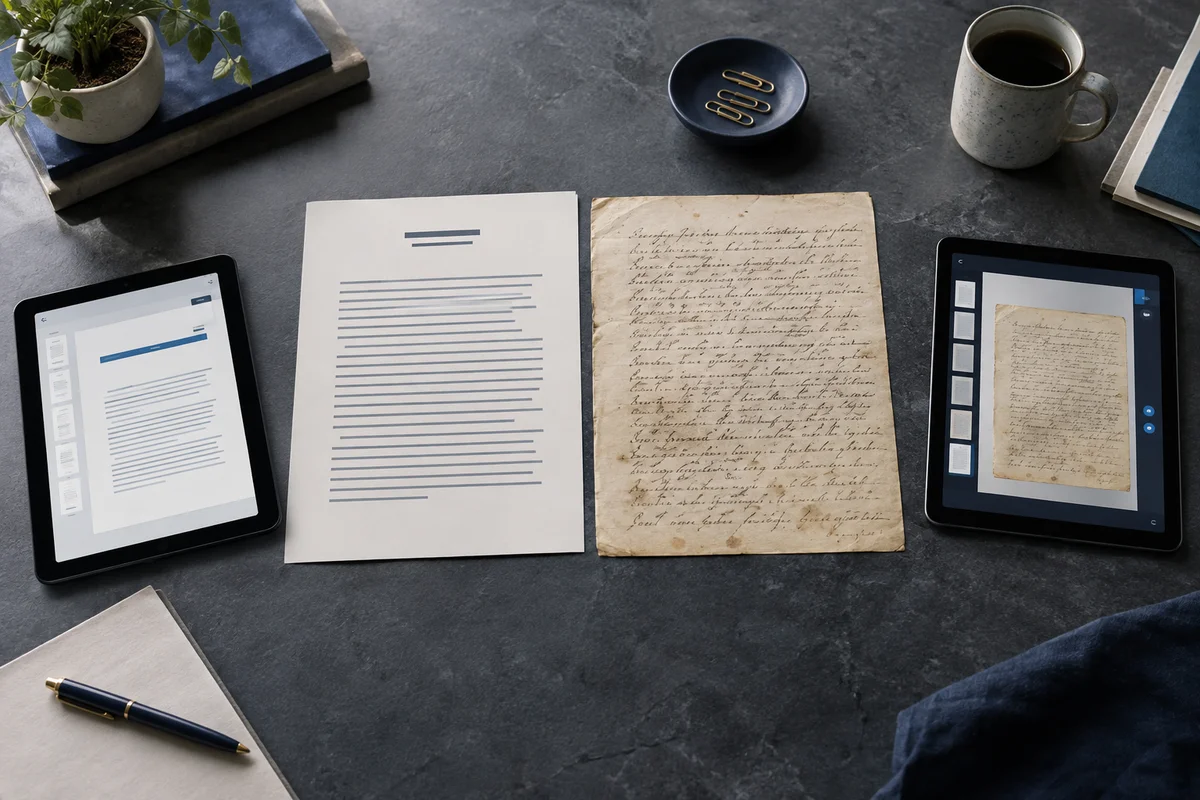
The distinction between a text layer and a picture of text is central. If a page was made by scanning paper and contains only an image, there may be nothing for this tool to extract even though the letters look clear to a person. It reports the affected physical page numbers instead of calling the PDF broken. Optical character recognition, or OCR, is a separate process and is not included here. The tool also does not convert tables into structured rows and columns or promise that text from a complex layout will follow a human reading order.
PDF page content often consists of small text runs positioned at coordinates, rather than paragraphs stored as word processor paragraphs. The Keep detected lines mode uses line ending hints and vertical positions from the PDF reader to build plain text lines. It aims to preserve visible breaks where they can be detected. It may still join words that were stored separately, insert a space between positioned runs, or put a break in an unexpected place when the source positions are unusual. The result is intended for review, not as a guaranteed replica of the printed page.
Gently join continuous lines starts from those detected lines. It places consecutive lines together in a paragraph unless there is a simple sentence ending or list cue. For common Chinese characters that touch across a line boundary, it avoids inserting an English space. This is a modest cleanup option for reading and pasting notes. It does not infer document headings, indent levels, columns, citations, or an author's exact paragraph breaks. Choose Keep detected lines when position and line boundaries matter more than compact reading.
A physical PDF page number is its position in the file. That can differ from a number printed in the margin or displayed by a reader's internal page labels. If a report has a cover followed by a page printed as “1,” the second physical page is still page 2 for this tool. A range like 4,1-2 extracts physical page 4 first, then pages 1 and 2. This can help collect a few notes in a deliberate order, though the output headings will continue to show the original source positions.
With page markers on, each selected page starts with a heading such as “Page 4.” If that page has no encoded text, the section says so. These headings are generated by the tool and were not present in the source. They make it easier to trace a quote back to its PDF location. With markers off, empty pages contribute no visible text; the result panel still lists their source page numbers. When a document has mixed scans and digital pages, keep the markers on so a gap cannot quietly be mistaken for missing document pages.
A scanned PDF commonly stores photographs or raster images of pages. A screen reader or copy action may see no selectable letters because the file has no text layer. This tool will show the page as having no extractable text. That is a statement about the current extraction result, not a diagnosis that the PDF is damaged or that its picture is blank. An OCR system must analyze pixels and create recognized characters, and those characters then need proofreading. A PDF may also contain decorative vector outlines of letters rather than encoded text, with a similar extraction limit.
Some PDFs combine an image with a hidden OCR layer. In that case this tool may return characters, but they reflect the existing OCR layer and may contain mistakes. Compare names, numbers, and quoted sentences against the visible page. An apparently empty result can also arise from damaged font encoding or unusual PDF features. Try another reader if the source clearly allows selection yet the extracted result is unexpectedly blank. The tool will not silently invent text or claim an image was recognized.
Text may be drawn in an order unrelated to the way a person scans the page. A two column article could store all left column runs first, all right column runs first, or pieces of both interleaved. Text boxes, headers, marginal notes, footnotes, and captions can make the order even less predictable. The tool follows the content returned by its PDF reader, with limited line grouping. It does not analyze page regions to reconstruct a reliable two column reading path. For a complex report, inspect the output beside the PDF before quoting or feeding it into another system.
Table data presents another problem. A table is a visual relationship among cells, borders, and rows. Plain TXT has no cell model. The extracted numbers may appear close together or in an unexpected order, and a separator may not reveal which figure belongs to which heading. This tool does not advertise table to CSV conversion or structured extraction. If you need a spreadsheet, use a method designed for table recognition and check every column alignment.
The download is a UTF-8 encoded TXT file with a byte order mark to help common desktop editors detect the encoding. It contains the same selected text shown in the result box, plus any page labels you requested. Chinese, English, and other characters supplied by the PDF's text layer can therefore be kept in a normal text file. The browser copy button attempts to put the whole result on your clipboard. If clipboard access is unavailable, it selects the result so you can use your keyboard's copy shortcut. You can also select a smaller passage from the result area.
One input PDF is limited to 30 MB and 200 pages, and the generated text is limited to 12 MB. This bounds memory and prevents an unexpectedly huge TXT download. Work runs page by page with progress and a cancel button. Canceling stops the current job without offering a partial download; adjust the selection and try again. A page with no text is still counted and reported. The source PDF remains unchanged, and the plain text output does not retain fonts, images, links, annotations, page geometry, or interactive fields.
For a brief digital report, the text may be immediately useful for search or notes. For legal, scientific, medical, or financial material, a single misplaced number or column can change the meaning. Reopen the PDF and verify any passage you plan to cite or share. Confirm whether the first and last selected pages are represented, whether language specific characters survived, and whether a scanned page was reported. The tool gives a preview and explicit empty page list, but it cannot judge semantic correctness.
Encrypted or corrupted PDFs are not converted as if successful. A file can also use fonts with incomplete character maps, so some words may be missing or wrong even though page rendering looks normal. The output is raw text for further editing; it is not a searchable PDF and does not add a text layer back to the original. If your goal is to make a scan searchable, choose a proper OCR workflow and proofread the recognized layer.
The visible words may be pixels in a scanned image, or the file may use outlines or unusual font encoding. This tool reads an existing text layer. It lists the pages with no extractable text so you can identify candidates for OCR or further inspection.
Choose Keep detected lines. It uses the PDF reader's line ending signals and text positions, but the source PDF might not contain true paragraph boundaries. Review the result against the displayed page.
PDF drawing order can differ from visual reading order. This tool does not reconstruct complex columns or tables. Select a smaller page range and manually correct the copied text if order matters.
Yes, when the PDF has extractable Chinese characters. The download uses UTF-8. If the Chinese page is only a scan, this tool will report no text rather than run OCR.
No. Plain text contains characters and optional page labels. Images, layout, interactive elements, and table structure are not preserved.
No account. No app to install.
Choose your files, adjust the settings, and download the result you need.
Free to use · Files processed in your browser