Settings that fit your task
Choose pages, order, or output settings for the document you need today.
Free online PDF tool
Mark private areas, review each page, and rebuild a sharing copy with the marked pixels removed.
Free to use. No account. Files processed in your browser.
Processed in your browser
Mark private areas, review each page, and rebuild a sharing copy with the marked pixels removed.
Add one PDF
Up to 30 MB and 100 pages per file.
No PDF selected.
Rebuilds every visible page as a PNG image after replacing selected pixels with solid black. All original text layers, links, fields, bookmarks, attachments and source metadata are omitted. It does not detect private information for you. Signature fields, certified documents and XFA are unsupported.
Clear steps and useful tools, from choosing your files to getting the job done.
Mark private areas, review each page, and rebuild a sharing copy with the marked pixels removed.
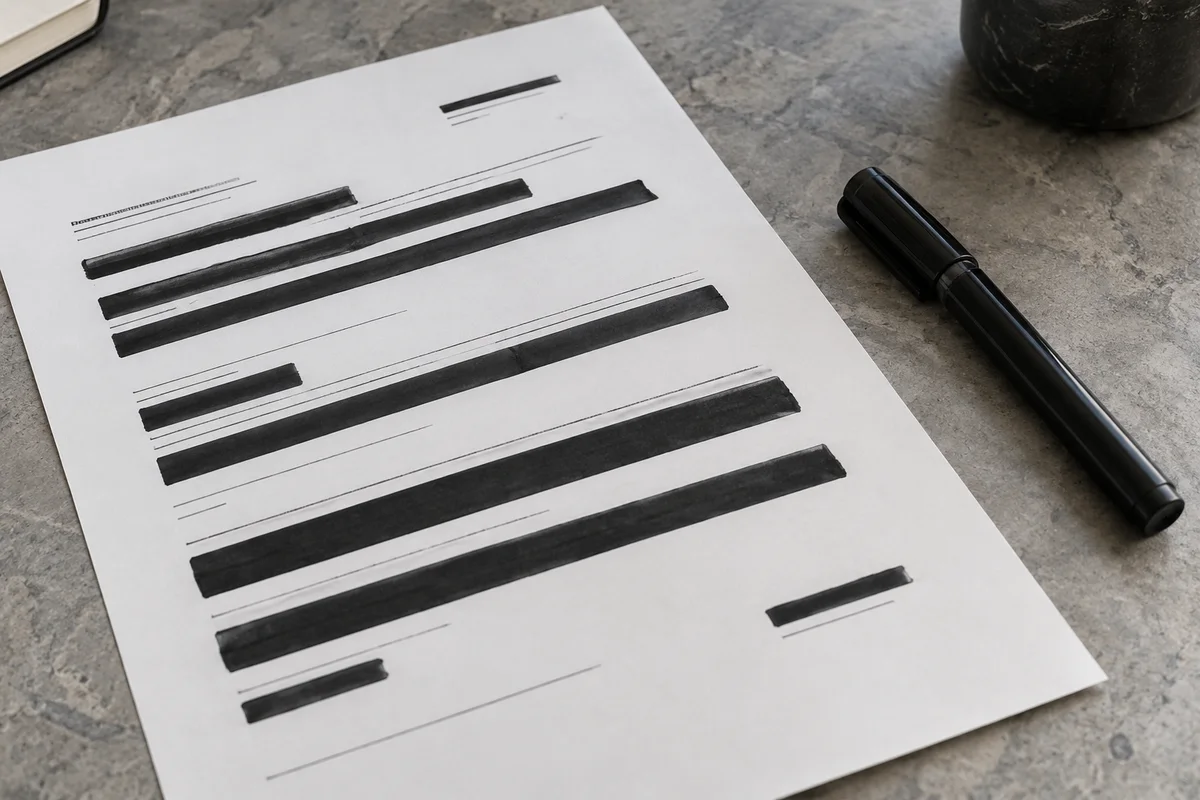
Keep reading, printing, or sharing after export. Tools produce PDFs, images, text, spreadsheets, or ZIP files as appropriate. Review important documents in your usual reader.
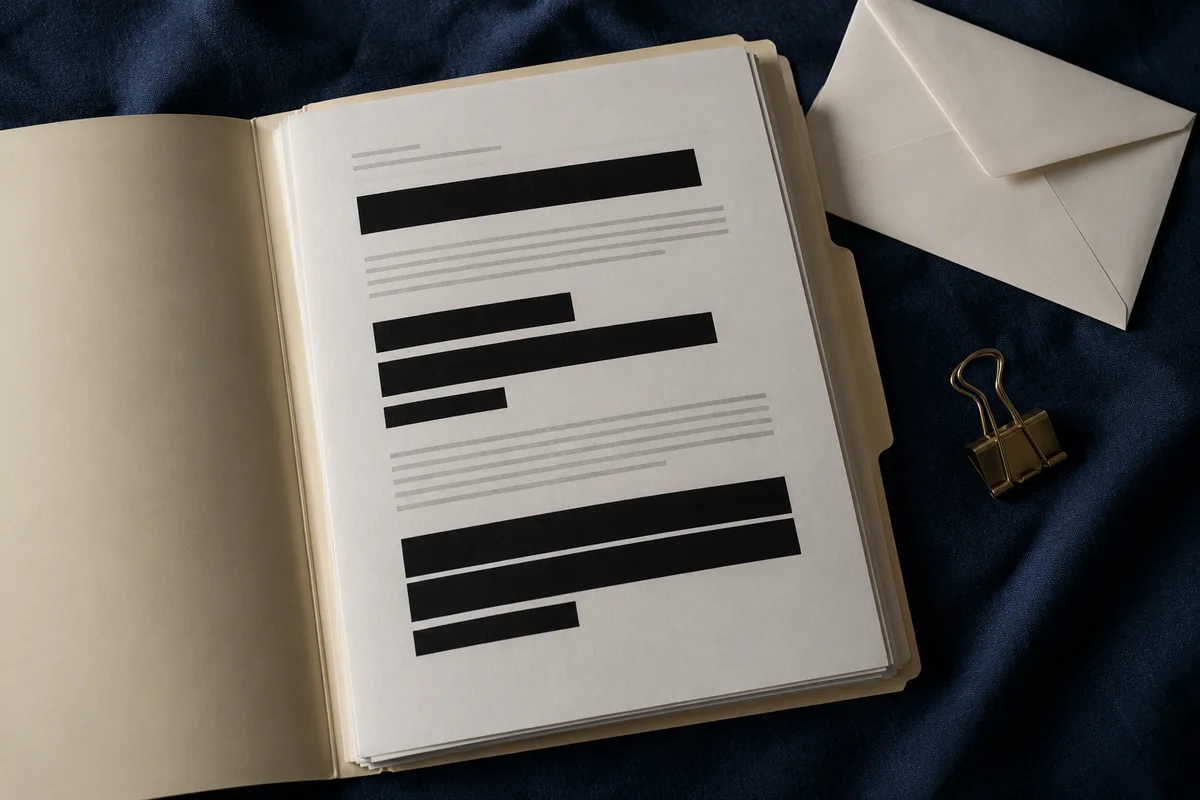
No app to install and no account to create. Use a computer, tablet, or phone, with file-size and page limits clearly listed in each tool.

Focused on one task, with a clearer path from start to finish.
Choose pages, order, or output settings for the document you need today.
Use the preview, processing summary, or output checks available in the tool.
Your chosen documents are read and processed in this browser session.
Save a new file when processing finishes, in the format provided by your tool.
Each operation creates a new result without overwriting your originals.
Use a computer, tablet, or phone. File and page limits are listed in the tool.
No account, no installation. An easier flow for everyday documents.
Choose an unsigned PDF and inspect all pages for private information.
Mark and add each region to the intended pages, review the masks, and confirm image-only output.
Download the rebuilt copy and inspect every page before sharing; keep the original separately.
Practical instructions, file limits, and what to check in your result.
Before sharing a statement, contract, or application, you may need to remove an address, account number, signature image, or other private detail. A visible black rectangle added as an annotation can leave the original material inside the document. This tool uses a different output process: replace the selected area in the rendered pixels, then build a new PDF entirely from those processed page images. Source content objects are not copied into that new file.
This approach has a clear tradeoff. Every output page becomes an image, including pages with no selected region. Original selectable text, OCR layers, links, forms, bookmarks, attachments, and source metadata are omitted. Use it to create a visual sharing copy when that tradeoff suits the recipient. Keep your original separately, and check every page of the downloaded result before sending it anywhere.
Choose one PDF and inspect the first page preview. Drag a rectangle around the private information, or enter its left, top, width, and height as percentages of the visible page. The dashed rectangle is a proposed selection. Click Add region to affected pages to commit it to the page range you entered. Committed regions appear as solid black areas in the preview.
Include the complete private value and enough surrounding space to cover letter edges. Review nearby headings and public information that should remain visible. Use the preview page number to inspect each affected page, then add any further regions you need. Processing uses only committed regions. A dashed box that has not been added is not applied to the output, so check the region count before confirming the final operation.
Yes. Enter a range such as 1,3-5 before adding the region. The same percentage-based rectangle is committed to each listed physical page. This is useful for a repeated account number, header, or address printed in a consistent position. Page positions include covers and inserts; they are not automatically matched to a printed page number or a section label.
Do not assume that a repeated field stays in exactly the same place throughout a document. Different paper sizes, layouts, or scanned margins can move it. Navigate to each affected page and inspect the solid mask. Add separate regions where needed. You can undo the last committed region or clear all regions before processing. A range adds individual page regions, so undo removes the most recently added page region, one at a time.
The saved copy has no original text or OCR layer. For each page, the tool first renders the visible content, replaces selected pixels with solid black, and encodes that modified image as PNG. It then creates a new page containing only that image. The original text objects and unmodified image bytes are not embedded underneath a removable drawing in the output.
Searching or copying text in this output should therefore return no original page text, including public text you did not mask. That is an expected consequence of image-only output. Before sharing, reopen the actual downloaded file and try searching for the removed value. Also inspect the visible black area at a useful zoom. The tool cannot know whether you selected every occurrence or whether other visible details indirectly reveal the same information.
Yes. A selected region is applied to the rendered page pixels, so it can cover private details in a scan, photograph, or visible drawing as well as ordinary PDF text. You do not need OCR to mark a region on an image. An existing OCR layer is not carried into the new file, which prevents that layer from retaining the value after its visible image has been covered.
Use a fully opaque mask that covers the entire detail. A partial stripe, blur, or lightly painted mark can leave recognizable shapes and is not the output this tool produces. Check copies of the same information elsewhere on the page, such as a printed account number and a barcode encoding it. The website does not interpret barcodes, identify personal details automatically, or decide which information your recipient should be allowed to see.
The new document is created from rendered page images rather than copied source objects. Original document properties, embedded attachments, scripts, bookmark labels, layers, form values, and text outside the visible page boundary are not carried into it as their original objects. Basic producer information may identify the tool that created the new file, but it does not copy the source author's name or title.
Visible content still needs your attention. A note, stamp, or form value that appears on the rendered page remains visible unless you cover it. The process is not automatic personal-information detection. The original document and any previous copies on your device or elsewhere are also unchanged. Give the sharing copy a clear new name and check that you attach this reviewed output rather than the original file.
No. The output contains page images and does not preserve interactive features. A filled form may still look filled if its appearance renders correctly, but its fields will not be editable in the sharing copy. A visible link label may remain on the page, but it is not an active hyperlink. Bookmarks and the original document's structured reading information are omitted.
Check any important filled values in the preview and downloaded file. Some specialized forms or annotations do not render like ordinary page content. Signature fields, certified documents, and XFA forms are rejected rather than presented as supported redaction inputs. If the recipient needs an editable, accessible, or digitally signed document, this particular image-based output is not an equivalent replacement for that document.
The available choices are one hundred fifty and two hundred DPI. Higher resolution uses more pixels for the same visible page and can make small characters clearer, while increasing memory use and file size. PNG encoding avoids introducing JPEG artifacts around the black mask. It does not create details that were absent from the original scan or restore blurred source text.
The output follows the source's visible page dimensions and viewing orientation. Rotated pages are rebuilt in their displayed direction. Check fine print, handwriting, stamps, and diagrams on representative pages after export. The whole document can become larger, especially when it originally contained compact digital text. If the recipient needs a smaller attachment, compare a separate compression result carefully and ensure the masked areas remain fully covered.
You can change your proposed regions, undo a committed region, or clear all regions before processing. The downloaded sharing copy does not contain the removed source pixels, so it cannot restore the original content by deleting a box or editing a mark. If you remove too much, return to the original document and produce another copy with corrected selections.
Save the original separately when you need future revisions. Do not use the output as your only archive if searchable text, form fields, or navigation matter. Cancellation prevents a partial result from being offered for download. Changing settings also invalidates the previous download. Review the committed masks again before each new export, especially after selecting another file or using one rectangle across several pages.
Password protection controls opening a document with a password. Once an authorized recipient opens that file, its contents remain available according to the document's behavior. Permanent removal serves a different task: the recipient should not receive the selected content at all. Choose the operation that matches your sharing goal, and do not treat an opening password as a way to remove a private value from a page.
You can protect a reviewed sharing copy afterward if you also need an opening password. Start with one unencrypted PDF up to 30 MB and one hundred pages. There is a limit of five hundred committed page regions, twelve million rendered pixels per page, and bounded output size. Processing stays in the browser. Reopen the final file, inspect every page, and verify that only the intended material is visible before using it.
Choose a tool for the next step and review each output.
No account. No app to install.
Choose your files, adjust the settings, and download the result you need.
Free to use · Files processed in your browser