Settings that fit your task
Choose pages, order, or output settings for the document you need today.
Free online PDF tool
Standardize paper size and choose exactly how content should fit.
Free to use. No account. Files processed in your browser.
Processed in your browser
Set the paper, content scale, and margin, then preview and download a new file. Your source stays unchanged.
Add a PDF file
Local processing, no upload. Up to 30 MB and 200 pages.
No file selected.
Paper-only mode does not shrink content and stops if a page would overflow. Fit mode keeps the aspect ratio of text and images without stretching.
Choose a PDF to plan its page size.
This changes paper dimensions, not PDF file size. Encrypted files, interactive forms, and PDFs with annotations or page links are unsupported.
Clear steps and useful tools, from choosing your files to getting the job done.
Choose standard or custom paper. Keep content at its original size or fit it proportionally to the new page.
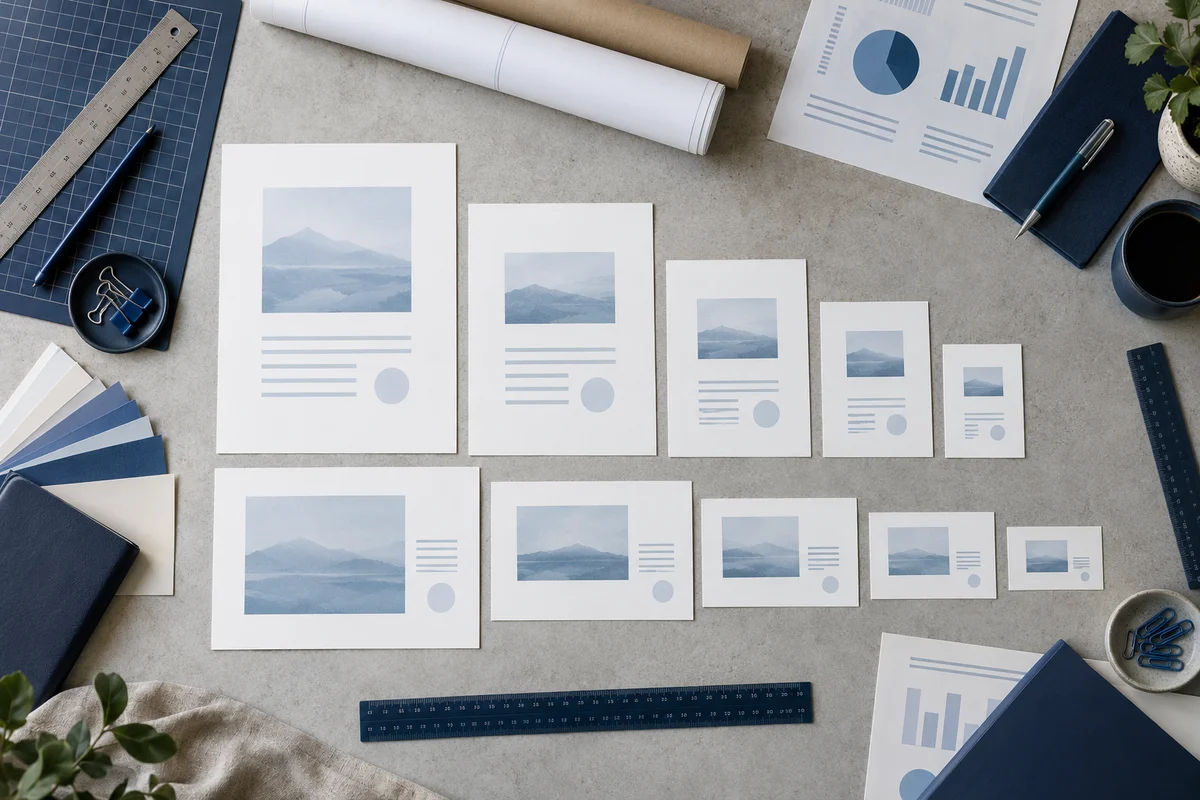
Keep reading, printing, or sharing after export. Tools produce PDFs, images, text, spreadsheets, or ZIP files as appropriate. Review important documents in your usual reader.
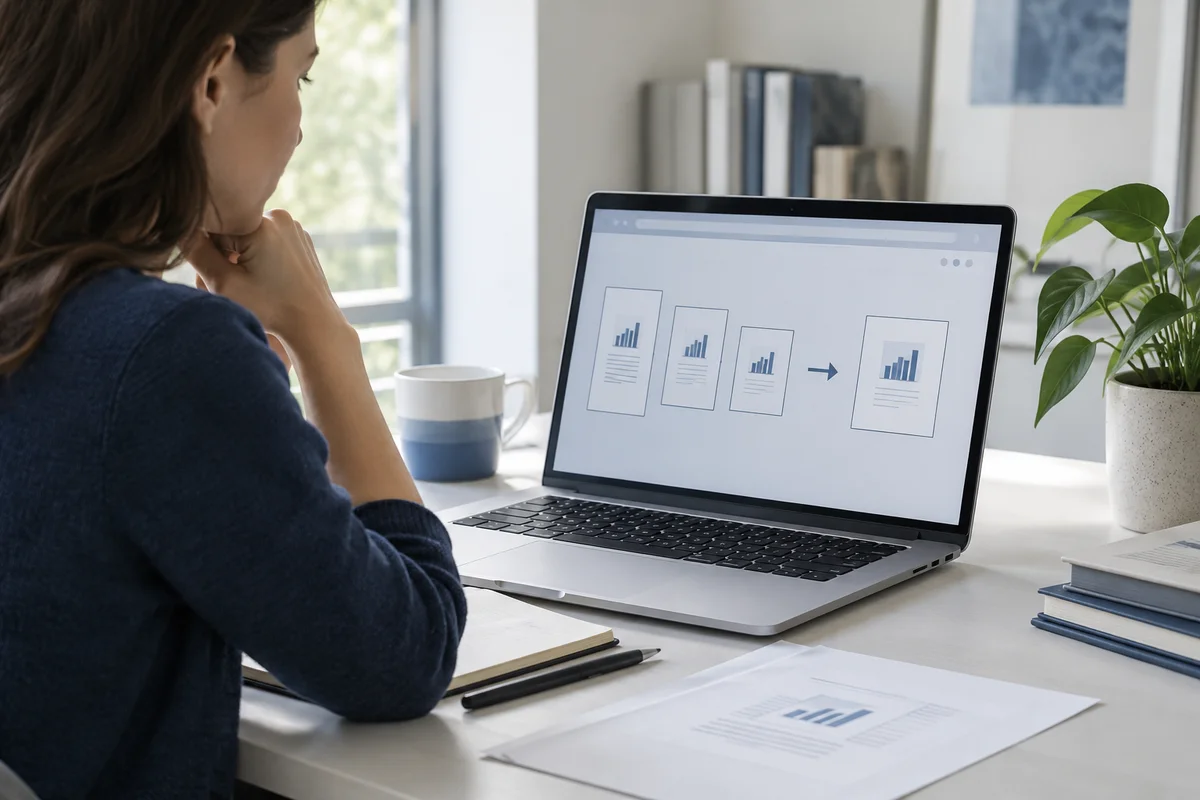
No app to install and no account to create. Use a computer, tablet, or phone, with file-size and page limits clearly listed in each tool.
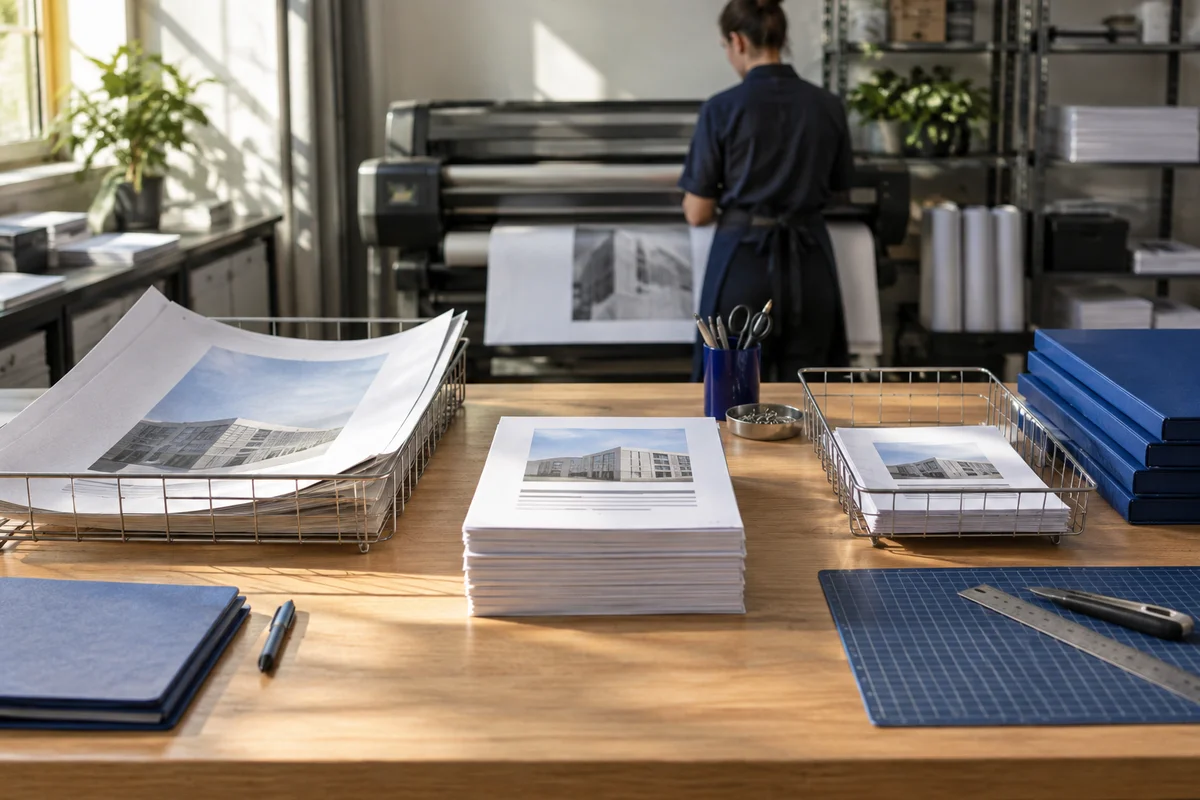
Focused on one task, with a clearer path from start to finish.
Choose pages, order, or output settings for the document you need today.
Use the preview, processing summary, or output checks available in the tool.
Your chosen documents are read and processed in this browser session.
Save a new file when processing finishes, in the format provided by your tool.
Each operation creates a new result without overwriting your originals.
Use a computer, tablet, or phone. File and page limits are listed in the tool.
No account, no installation. An easier flow for everyday documents.
Find the task you need and select PDFs or images from your device. Each tool lists its supported files and size limits.
Set pages, order, size, or style. Review the page preview or processing summary available in your chosen tool.
Create your result in the browser and save it to your device. Reopen important documents to review content and page order.
Practical instructions, file limits, and what to check in your result.
A document can be easy to read on screen and still use the wrong paper dimensions for printing or submission. One section may be A4, another US Letter, and a scanned appendix may use an unusual size. This tool places every visible source page on a new sheet size that you select. Choose A4, A3, Letter, Legal, or a custom width and height. The source file is not overwritten. You can see the planned paper size and content scale, compare one source page with its result, and then download a new PDF.
There are two deliberately different ways to resize PDF pages here. Fit proportionally enlarges or reduces the visible source page until it fits inside the selected paper and margin, keeping its aspect ratio. Change paper only keeps the visible content at 100% of its original physical size and adds space around it where possible. If the original-size page cannot fit inside the available area, the tool stops and explains the overflow instead of quietly cutting away an edge. Neither mode stretches text or images independently across the width and height.
US Letter and A4 are close in size, but their shapes differ. Letter is a little wider and shorter than A4. A Letter page placed onto portrait A4 with fit mode receives a uniform scale chosen from the available width and height after the margin is reserved. It may leave extra blank space above and below or at the sides. That remaining space is a consequence of preserving the source proportions, not a stretched or distorted layout.
If your Letter document has generous empty borders and you need the text to stay at its original physical size, choose paper-only mode. This works only when the entire visible source page, plus the requested margin, fits on A4. A full-bleed Letter page will generally be wider than A4 and will trigger an overflow message. Reduce the margin, choose a larger sheet, or use proportional fit. The tool does not inspect the interior whitespace and guess that text might still fit after the outer page edge is cut; it protects the complete visible page rectangle.
A mixed PDF can contain portrait report pages, landscape tables, photographs, and scanned receipts. When you select a standard preset with “follow each source page,” a landscape source receives the landscape version of that paper and a portrait source receives the portrait version. The output may therefore have the same paper family on every page while retaining the useful reading direction of each original. If a submission requires every sheet to be portrait regardless of the source, choose portrait explicitly. A landscape chart will then fit inside a portrait sheet, often with a smaller scale and more blank space.
Fit mode calculates a separate proportional factor for each page. It does not force a wide chart and a narrow text page to use one identical percentage. The plan reports the minimum and maximum scale across the document. That range is a useful signal: if one page would become much smaller than the others, preview that page before you export. Large technical drawings and tiny receipts may need different treatment from an ordinary report. This tool does not rearrange multiple source pages onto one sheet or split an oversized drawing across several sheets.
Paper-only mode changes the target page boundary while keeping the original visible page artwork at a scale of 100%. Use it when text and graphics must retain their physical dimensions, such as a template with measurements or a label whose print size matters. Alignment controls determine whether the source page sits against the left, middle, or right of the available width and the bottom, middle, or top of the available height. The margin reserves the same minimum space around the target sheet; any extra free space is distributed by the alignment you choose.
“Original size” refers to the source PDF's visible page box, not a measurement of each individual text or image object. The tool cannot know that a supposedly blank border really contains no annotations or marks. It blocks paper-only export when the source page rectangle exceeds the area inside the margin. This check is conservative and is designed to prevent accidental clipping. It does not promise that a printer can print to the physical edge of its paper; printers have their own unprintable margins, so check the printer's requirements separately.
Custom dimensions let you enter a precise width and height in millimetres or inches. The width and height are used exactly as entered, so a wider-than-tall pair produces a landscape page. The tool accepts reasonable paper dimensions from half an inch to 200 inches on each side and rejects zero, negative, or nonnumeric values. Switching between millimetres and inches converts the displayed custom dimensions and margin, so a change of unit does not silently turn a 10 mm margin into a 10 inch margin.
A single margin value is applied to every target edge. It describes space on the new sheet, not a crop taken from the source page. If you need to remove an existing border from a source first, use the separate crop tool and inspect that output before resizing. If you need a different margin on each side, this version does not offer independent edge values; you can position the fitted page within the remaining space using alignment, but the reserved minimum margin stays symmetric.
The processor embeds each source page's current visible rectangle as PDF page artwork on a new target page. It converts quarter-turn page rotations so that the result reads in the same visible direction. This is not a screenshot conversion: ordinary selectable text and vector drawings remain PDF objects, and scanned images are placed as image content rather than intentionally rephotographed. The processor reopens the generated file and checks the page count, target dimensions, and output rotation. Visual checks are still necessary because a correct page box alone cannot prove that every line and image is positioned usefully.
Creating new pages can affect PDF structures beyond the visible artwork. Bookmarks, internal navigation, attachments, tagged accessibility information, and digital signatures may be lost or invalidated. Pages with annotations or links are rejected rather than silently dropping their page-level objects. Interactive form PDFs are also rejected. If those features matter, preserve the original document and use an editor that explicitly supports them. Do not expect the output to preserve a certified signature or be a verified PDF/A document.
The selected file is read and processed in a browser worker. This tool does not send it to a file-processing server. The website may still request ordinary scripts, styles, and fonts, so “local file processing” does not mean the entire site works offline. Large image-heavy PDFs can need more memory than their saved file size suggests. If a browser struggles, reduce the source file size or split it into smaller parts, then inspect each result.
Select A4 and choose portrait for every page or follow each source page if landscape sheets should remain landscape. Choose proportional fit to place each visible page inside the A4 margin. Preview different source sizes before downloading, then verify every output page in a reader.
Yes, choose “Change paper only; keep original content size.” The source artwork stays at 100%. If it cannot fit inside the target paper and margin, export is blocked. Select a larger paper or proportional fit when the original page is too large.
No file-size reduction is promised. This tool changes page dimensions and placement, not compression settings. A new PDF can even be larger because it contains new page structures. Use a separate, verified optimization process if download size is your goal.
Different paper shapes cannot be filled perfectly while preserving aspect ratio. Fit mode keeps the whole visible source page and leaves the unused dimension as white space. Alignment decides where that space appears. Stretching width and height independently would distort text and images, so this tool does not do it.
The visible source orientation is used for size planning. Standard paper can follow that orientation, and the placed artwork is turned so it reads correctly on an output page with zero page rotation. Preview a rotated or landscape page to confirm the result, particularly if the source has an unusual existing crop box.
No account. No app to install.
Choose your files, adjust the settings, and download the result you need.
Free to use · Files processed in your browser