Settings that fit your task
Choose pages, order, or output settings for the document you need today.
Free online PDF tool
Compare two versions visually and inspect highlighted pixel differences.
Free to use. No account. Files processed in your browser.
Processed in your browser
Compare two versions visually and inspect highlighted pixel differences.
Add the first version
Up to 30 MB and 100 pages per file.
Add the second version
No PDF selected.
Compares matching physical page positions at preview resolution. It does not align inserted pages or interpret wording, metadata or invisible changes.
Clear steps and useful tools, from choosing your files to getting the job done.
Compare two versions visually and inspect highlighted pixel differences.
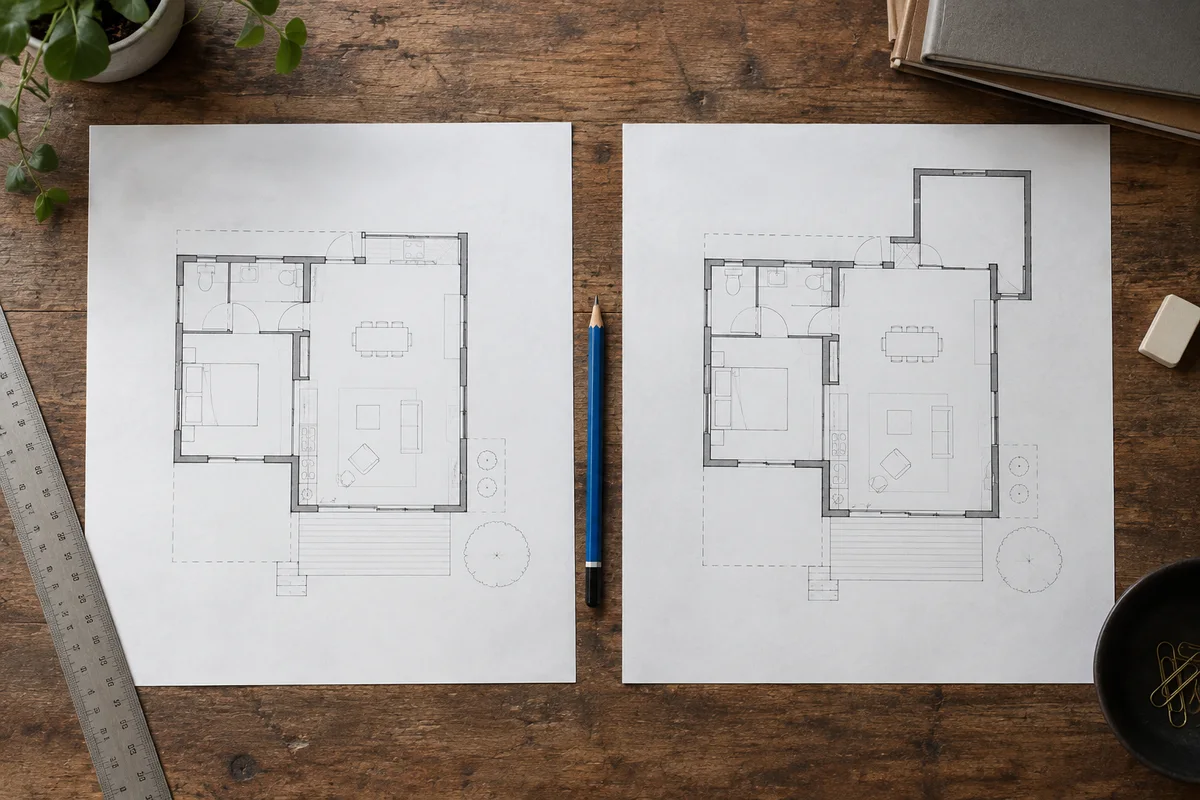
Keep reading, printing, or sharing after export. Tools produce PDFs, images, text, spreadsheets, or ZIP files as appropriate. Review important documents in your usual reader.
No app to install and no account to create. Use a computer, tablet, or phone, with file-size and page limits clearly listed in each tool.

Focused on one task, with a clearer path from start to finish.
Choose pages, order, or output settings for the document you need today.
Use the preview, processing summary, or output checks available in the tool.
Your chosen documents are read and processed in this browser session.
Save a new file when processing finishes, in the format provided by your tool.
Each operation creates a new result without overwriting your originals.
Use a computer, tablet, or phone. File and page limits are listed in the tool.
No account, no installation. An easier flow for everyday documents.
Select the first and second PDF versions in matching page order.
Set pixel tolerance, then compare the rendered page pairs.
Inspect pink highlights and missing pages; download the comparison report if useful.
Practical instructions, file limits, and what to check in your result.
When someone sends a revised document, a quick visual comparison can help you decide where to look. This tool renders two PDFs, pairs pages by their physical positions, and highlights pixels that differ beyond a chosen color tolerance. It displays the first version, the second version, and a difference view. You can inspect the page images and download a JSON summary containing the comparison settings and page-level measurements.
The workflow compares appearance, not meaning. It does not interpret a revised sentence, identify a legal change, or explain why a figure moved. It also does not inspect metadata, hidden text, attachments, scripts, or every other invisible part of a PDF. Use the highlighted regions as a guide for review, then read the relevant content in both originals. A visual comparison is useful precisely when its scope is understood rather than mistaken for complete document equivalence.
Add the first version, then add the second version in the separate file picker. Keep their roles consistent so you can tell which preview belongs to which file. Choose the pixel color tolerance and start processing. The tool works through the physical page positions, showing differences in pink. If one document has more pages, the unmatched positions are reported explicitly rather than treated as ordinary matching pairs.
For a short report, start by inspecting pages with visible highlighted areas, then check any important page even if its measured difference is small. A tiny change in a number can matter more than a large change in a decorative background. The percentage tells you how much of the rendered preview changed under the selected settings; it does not rank the importance of those changes. Keep the original files available for reading fine details.
The tolerance controls how different corresponding pixel colors must be before they are highlighted. A low value is more sensitive to small color changes, including subtle rendering or image-compression differences. A higher value ignores more minor variation, which can make a noisy comparison easier to inspect. The accepted range is zero to one hundred. The setting applies to the rendered preview rather than to text characters or semantic differences.
Do not raise the tolerance until the page appears clean and assume that no meaningful changes remain. Pale text, faint stamps, or a lightly colored annotation can fall below a permissive threshold. Likewise, a low threshold may highlight many pixels around otherwise unchanged letters. Compare results at a suitable setting for the source quality, and inspect the original pages when the difference view is ambiguous.
Yes, a visual comparison can work with scans because it operates on rendered page images rather than requiring a text layer. That makes it useful for checking two image-based copies of the same layout. However, separate scans of the same paper can differ in alignment, lighting, rotation, shadows, and noise. Those differences may produce extensive highlighting even when the printed words did not change.
This tool does not automatically register, deskew, or perspective-correct the scans. Prepare consistently aligned inputs when possible. If every line is outlined in pink, look for a shift or scale difference before concluding that all the text was edited. For heavily misaligned scans, a workflow with dedicated image registration may be more appropriate. The visual result still tells you that the images differ, but not whether those differences represent a revision to the document's content.
Pages are paired by physical position: the first page of the first file with the first page of the second, and so on. An inserted cover or appendix page shifts the positions that follow it. The tool does not search the rest of the file for a better matching page or automatically align moved sections. As a result, a single insertion can make many later pairs look completely different.
If you know where the insertion occurred, prepare comparable sections with the split tool or organize copies into matching sequences before comparing them. Keep a note of those preparation steps so the result remains understandable. Do not delete a newly inserted page from your records merely to make the comparison easier. Review additions separately, and use aligned copies only as an aid for checking corresponding existing content.
No. Zero reported pixel difference means the compared previews did not exceed the selected threshold at the working resolution. The files can still have different metadata, hidden content, text encoding, attachments, or structure. Very small visual changes may also disappear when a page is reduced to preview size. This tool does not calculate or present a byte-for-byte identity proof.
If exact file identity is your requirement, compare cryptographic hashes or file bytes through a suitable workflow. If wording accuracy is your requirement, read the text in context and consider a dedicated text comparison alongside the visual review. A PDF can look the same while containing a different hidden OCR layer, and a layout change can look substantial while leaving the wording unchanged. These are different questions and need different evidence.
A PDF's appearance depends on fonts, image decoding, page geometry, and rendering. Different source exports can position letters slightly differently or use different font outlines even when the visible wording appears similar. Thin strokes and antialiased edges are especially sensitive to small differences. A re-exported document may therefore show halos or edge changes across many lines without a corresponding word-level edit.
Inspect those regions at a useful scale and compare the actual characters. Increasing tolerance modestly may reduce low-level edge noise, but it also reduces sensitivity to faint changes. The tool loads its own PDF rendering resources so both inputs use the same browser workflow, yet it cannot turn two independently generated PDFs into identical drawing instructions. The highlight is evidence of a rendered difference, not an automatic explanation of its cause.
The percentage is calculated from the number of differing pixels in the comparison canvas. It is useful for locating pages that deserve attention and for understanding how the selected tolerance affects a result. It is not the percentage of words changed, the percentage of clauses revised, or a confidence score. A large photograph replacement can dominate the value, while an important decimal point may affect only a tiny area.
For review, combine the numerical summary with the side-by-side views. Check page presence, geometry, headings, totals, and highlighted details. Do not sort your decisions solely by the largest percentage. A page with a small measurement may contain the one change relevant to your task. If your process requires a formal explanation of revisions, write that explanation after examining the source content rather than deriving it automatically from the pixel count.
The JSON report records the visual page-position mode, chosen tolerance, preview width setting, and one entry for each compared position. Entries indicate whether a page exists in each source, the measured changed percentage, and a page-dimension difference flag. It is a compact machine-readable summary for your own records or further processing. It is not a marked-up PDF containing all the preview images or a written interpretation of changes.
Keep the report with the two source versions if you need to reproduce the review context. A JSON file alone does not show the underlying passages, so it should not be treated as a substitute for the originals. The report's settings matter: changing tolerance or source preparation can change the measurements. When explaining a result to someone else, state that it is a visual comparison of page positions at preview resolution.
Each input must be an unencrypted PDF no larger than 30 MB and with one to one hundred pages. Rendering has bounded preview dimensions to keep ordinary comparisons practical in the browser. Damaged files or unsupported page geometry produce an error. The selected PDFs are processed locally by the page rather than uploaded to a document-comparison service. Website code and reader resources still load from the site's host.
You can cancel processing, clear the files, or change the settings and run again. A canceled job does not provide a partial report as if it were complete. Before relying on the result, check that you selected the intended versions, understand any page-count mismatch, and inspect important content directly. The tool helps focus attention, while the final judgment about what changed remains with the person reviewing the documents.
Choose a tool for the next step and review each output.
No account. No app to install.
Choose your files, adjust the settings, and download the result you need.
Free to use · Files processed in your browser