Settings that fit your task
Choose pages, order, or output settings for the document you need today.
Free online PDF tool
Detect likely blank pages, inspect thumbnails, and choose what to remove.
Free to use. No account. Files processed in your browser.
Processed in your browser
Detect likely blank pages, inspect thumbnails, and choose what to remove.
Add one PDF
Up to 30 MB and 100 pages per file.
No PDF selected.
Detection is only a suggestion. Check faint marks and intentional blank pages before removing them.
Clear steps and useful tools, from choosing your files to getting the job done.
Detect likely blank pages, inspect thumbnails, and choose what to remove.
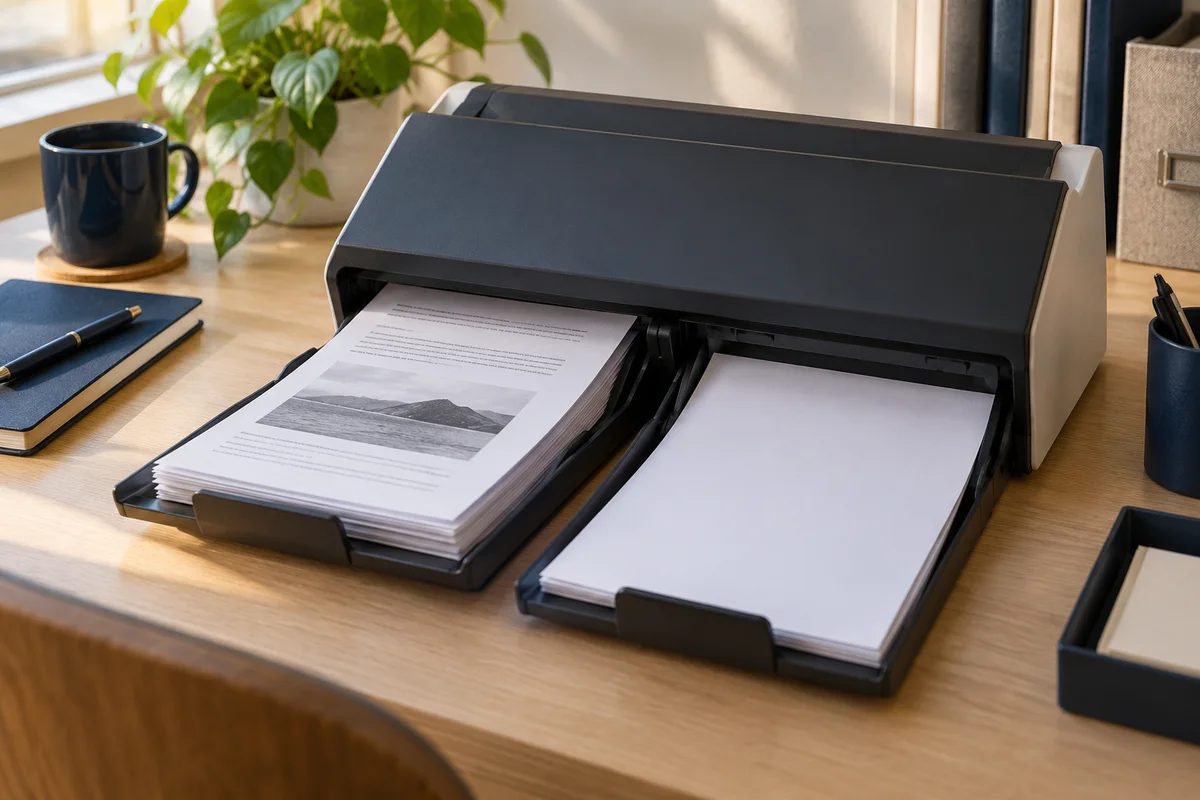
Keep reading, printing, or sharing after export. Tools produce PDFs, images, text, spreadsheets, or ZIP files as appropriate. Review important documents in your usual reader.
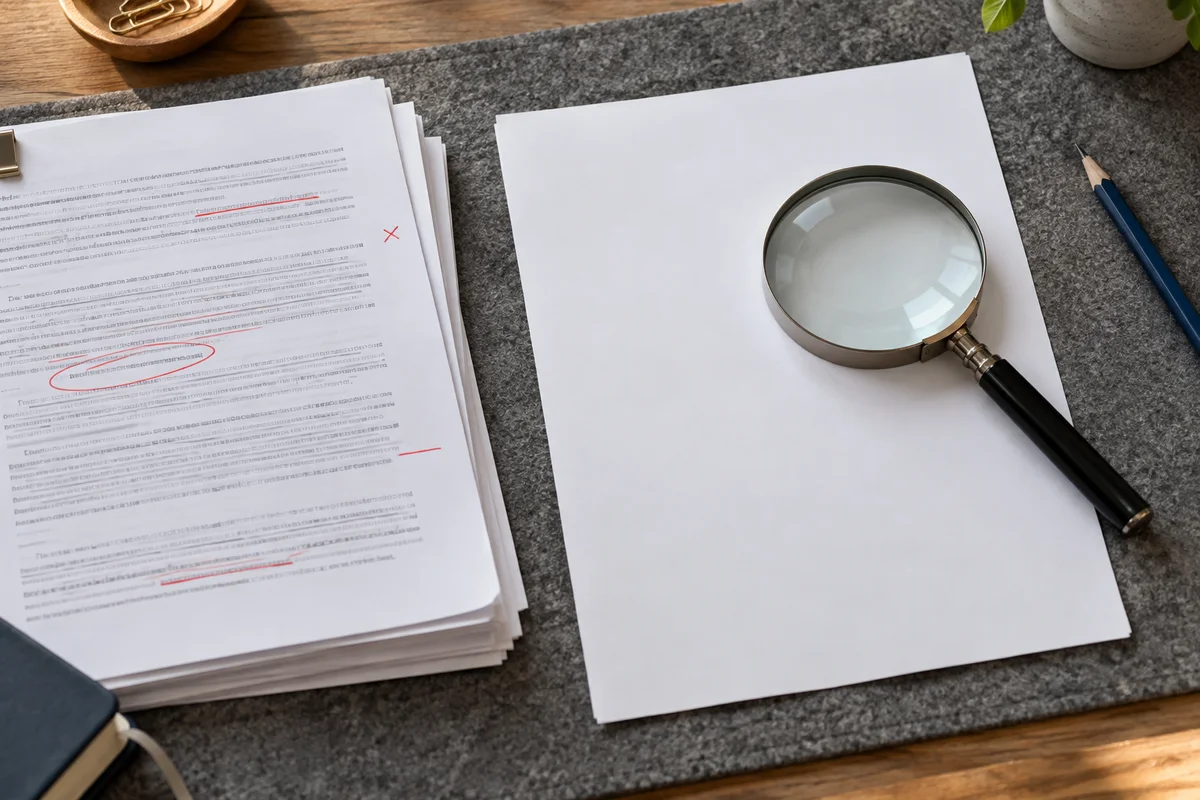
No app to install and no account to create. Use a computer, tablet, or phone, with file-size and page limits clearly listed in each tool.
Focused on one task, with a clearer path from start to finish.
Choose pages, order, or output settings for the document you need today.
Use the preview, processing summary, or output checks available in the tool.
Your chosen documents are read and processed in this browser session.
Save a new file when processing finishes, in the format provided by your tool.
Each operation creates a new result without overwriting your originals.
Use a computer, tablet, or phone. File and page limits are listed in the tool.
No account, no installation. An easier flow for everyday documents.
Choose a scanned PDF, including intentionally blank backs if present.
Run detection, enlarge uncertain pages, and check only pages you want removed.
Export the reviewed selection, keeping at least one page, then check the new page order.
Practical instructions, file limits, and what to check in your result.
A duplex scanner can create a useful document and a long trail of empty backs at the same time. This tool helps you find those likely blank pages, review them visually, and save a shorter reading copy. It analyzes the visible page image and checks for an existing text layer or annotations. Pages that appear empty become suggestions in a thumbnail list. You decide which pages to remove before a new PDF is generated. The original file on your device is not overwritten.
Blankness is a practical judgment, not simply a page with no selectable text. A photographed page may contain plenty of writing while having no text layer at all. Conversely, a deliberate separator may contain only a tiny page number. A light pencil note may almost disappear at thumbnail scale. The detection step reduces repetitive inspection; it does not replace your decision about whether a page belongs in the document. Every selected page can be kept by clearing its checkbox.
Add one PDF, wait for it to be checked, and choose the maximum ink coverage for a candidate. Start with the default setting for clean white pages. Run detection and inspect the page thumbnails, especially pages near the beginning and end of each section. The checkbox beside a page means that page will be removed. You may select an unflagged page manually or clear a suggested selection. At least one page must remain. Export the reviewed selection and then download the new PDF.
For example, a six-page scan might contain useful material at physical pages 1, 3 and 5, with blank backs at 2, 4 and 6. After you confirm those three empty backs, the output contains the three retained pages in their existing order. The tool does not automatically assume that every even page is empty. That matters when a double-sided attachment, a handwritten reverse side, or a final explanatory note appears within an otherwise single-sided batch.
The detector renders a bounded preview and counts pixels darker than its near-white cutoff. The displayed percentage describes that preview, rather than a precise measurement of physical ink on paper. A page below your chosen maximum is considered a candidate only when the text and annotation checks also allow it. The accepted range is zero to three percent. A low setting is conservative about visible marks; increasing it can include pages with a small amount of scan noise.
A threshold is not a confidence score. A result of 0.02 percent does not mean the page has a 99.98 percent chance of being irrelevant. It might contain a short but important note. Likewise, a gray background can create high coverage on a sheet that a person regards as blank. Use the number to understand why a page was suggested, then judge the page itself. There is no automatic crop, edge-shadow removal, or background whitening in this workflow.
The page may contain a hidden text layer, an annotation, a scan border, paper discoloration, or small visible marks. Those details can keep it out of the automatic candidate list. The tool intentionally treats existing text or annotations as a reason to avoid suggesting removal. A hidden OCR layer can therefore keep a visually empty page even when its rendered image looks white. This is a useful precaution when source documents have been processed several times.
Inspect the enlarged preview and, when necessary, the original PDF in a reader. If you decide the page is genuinely unnecessary, you can select it yourself. Do not increase the threshold just to make every expected blank appear selected: that can also flag lightly printed content elsewhere. When a batch has strong black scanner borders, manual selection may be faster and safer than trying to find one setting that describes every page.
Yes, if you accept a suggestion without reviewing it. Detection uses a preview, and very thin marks may be reduced by rendering. Pencil writing, pale stamps, a short initials line, or tiny footnotes deserve particular attention. Keep uncertain pages until you can inspect the full source. Click a preview to enlarge it; the original file remains the best reference for detail that is too small to see in the preview.
Some empty pages are part of a document's structure. A book chapter may be designed to begin on a right-hand page, or a form packet may reserve an empty back for notes. Removing such pages changes how the document falls on duplex sheets. The tool cannot infer those intentions. For a reading copy, removing empty backs may be helpful. For a print master, a submission packet, or a record that needs its original sequence, retaining them may be the correct choice.
The export removes selected pages from the PDF rather than photographing every retained page again. It does not deliberately reduce image resolution or convert selectable text into pictures. The visible content of retained pages should therefore keep its source quality. The preview itself is smaller than the original and is not the image used to rebuild the output. A soft thumbnail does not by itself indicate that the saved page has been compressed.
Document-level features still require checking after any structural edit. Bookmarks, internal destinations, printed references, and page labels may refer to pages that were removed. This workflow does not rewrite chapter references or repair every navigation feature. Open the exported file and check any links or navigation your readers rely on. Interactive forms are rejected rather than treated as ordinary pages, because removing form pages can affect fields and document behavior in ways this tool does not manage.
Physical positions change when pages are removed. If source page 4 becomes the second retained page, a viewer now reaches it as the second page of the output. Any number already printed inside its artwork stays the same. The tool does not repaint existing footers or add a new sequence. This distinction explains why a shorter file can still show numbers with gaps on the page itself.
If you want a continuous visible sequence, first finish removing and ordering pages, then use the page-number tool on the resulting file. Check whether existing numbers will conflict with the new ones. Keep a copy of the original if you need to trace an output page back to its source position. A descriptive filename such as “reading-copy-no-blank-backs” can also help colleagues distinguish the cleaned document from the complete scan.
A truly blank digital page may occupy very little storage. Removing several such pages can make a document easier to read without saving many bytes. A scanned blank back may contain a large image, so removing that page can have a much larger effect. Shared fonts and images can also remain necessary for other pages. Page count and file size do not move in a fixed ratio.
Treat the result as page cleanup, not a guaranteed compression method. If most of the remaining file size comes from high-resolution scans, the scanned-PDF compressor is a separate option with explicit quality tradeoffs. Review small print before choosing that additional step. Removing blank pages first can avoid spending time compressing pages you did not want to keep anyway.
Use one valid, unencrypted PDF no larger than 30 MB, containing between one and one hundred pages. Damaged files, interactive forms, unusual unsupported geometry, or an attempt to remove every page produce an error. The processing code runs in your browser, and the selected PDF is not uploaded to a document-processing service. The website still loads its application code and reader resources from its host.
You can cancel a running operation and try again with a different file or setting. A canceled job does not provide a partial download. Clearing the file removes the active result from the page, while an already downloaded copy remains wherever your browser saved it. Before sharing, reopen the finished PDF, check its first and last retained pages, inspect section boundaries, and verify that no necessary reverse-side note was excluded.
Choose a tool for the next step and review each output.
No account. No app to install.
Choose your files, adjust the settings, and download the result you need.
Free to use · Files processed in your browser