Settings that fit your task
Choose pages, order, or output settings for the document you need today.
Free online PDF tool
Arrange two or four pages on one sheet for handouts and printing.
Free to use. No account. Files processed in your browser.
Processed in your browser
Arrange two or four pages on one sheet for handouts and printing.
Add one PDF
Up to 30 MB and 100 pages per file.
No PDF selected.
Creates a new 2-up or 4-up PDF. This is not booklet imposition. Links and annotations are not supported.
Clear steps and useful tools, from choosing your files to getting the job done.
Arrange two or four pages on one sheet for handouts and printing.
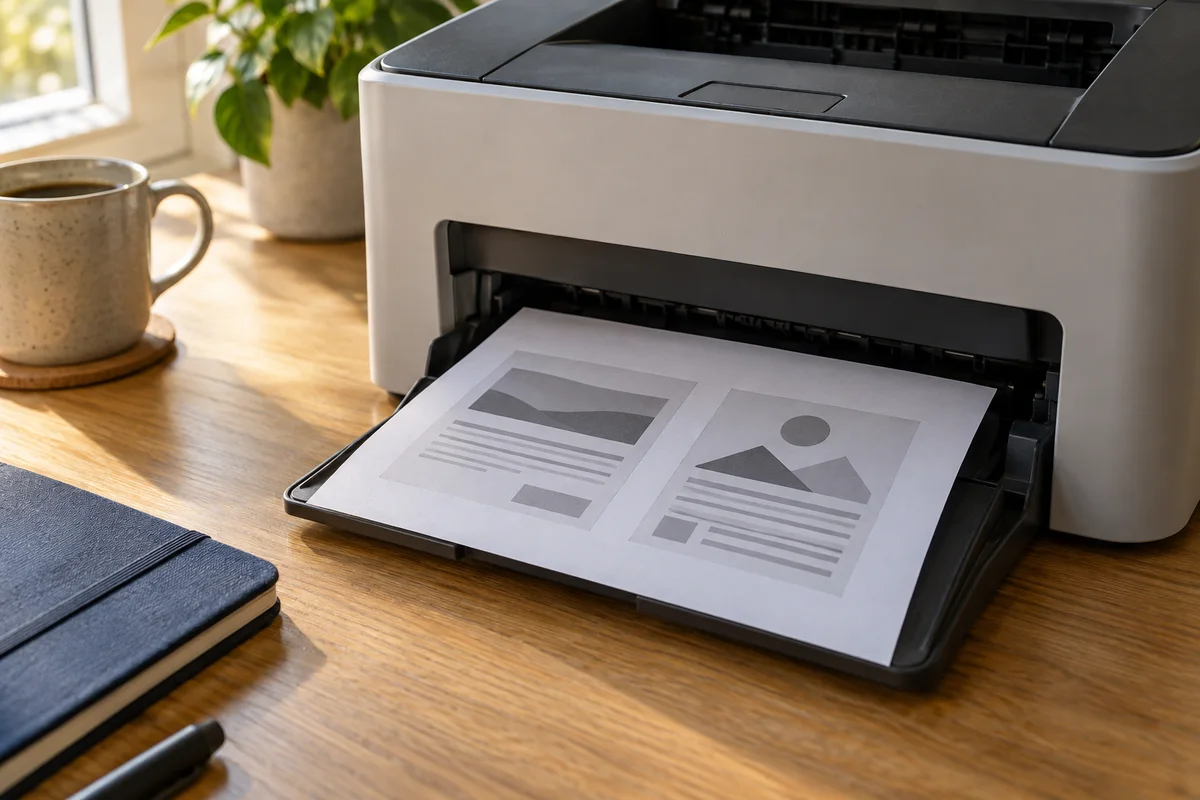
Keep reading, printing, or sharing after export. Tools produce PDFs, images, text, spreadsheets, or ZIP files as appropriate. Review important documents in your usual reader.
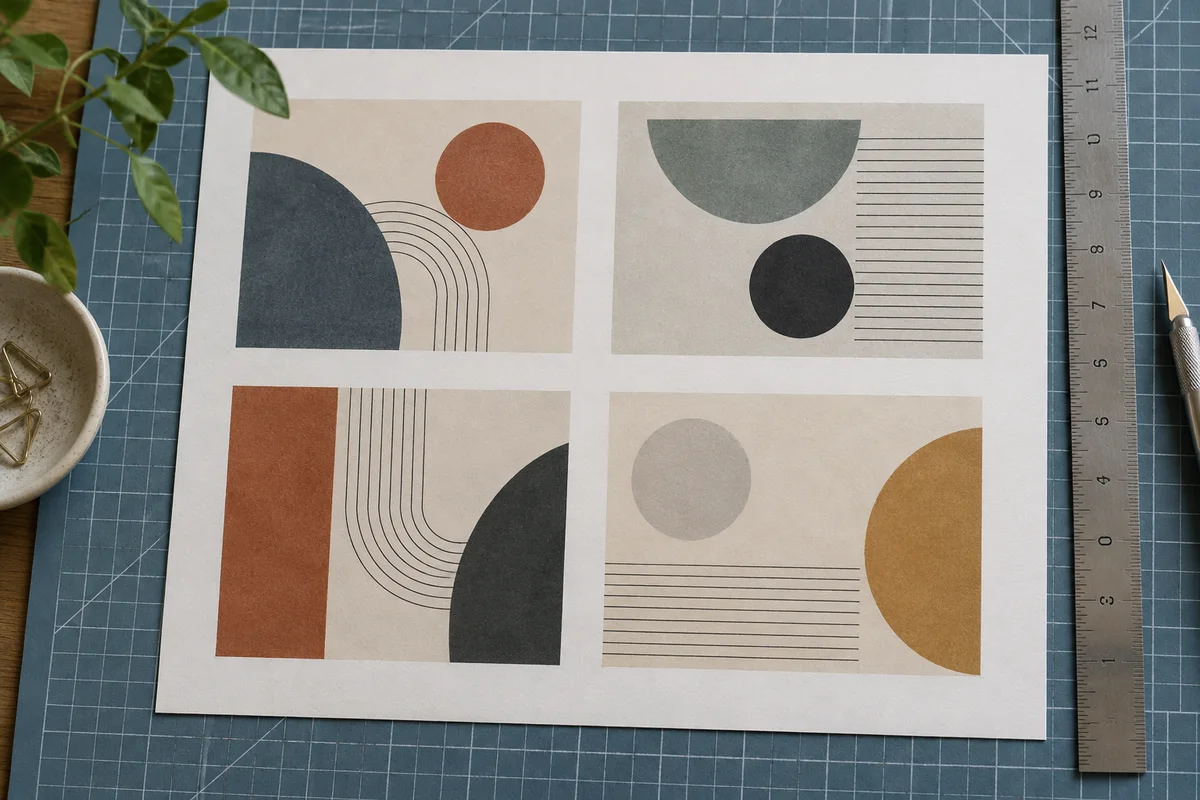
No app to install and no account to create. Use a computer, tablet, or phone, with file-size and page limits clearly listed in each tool.
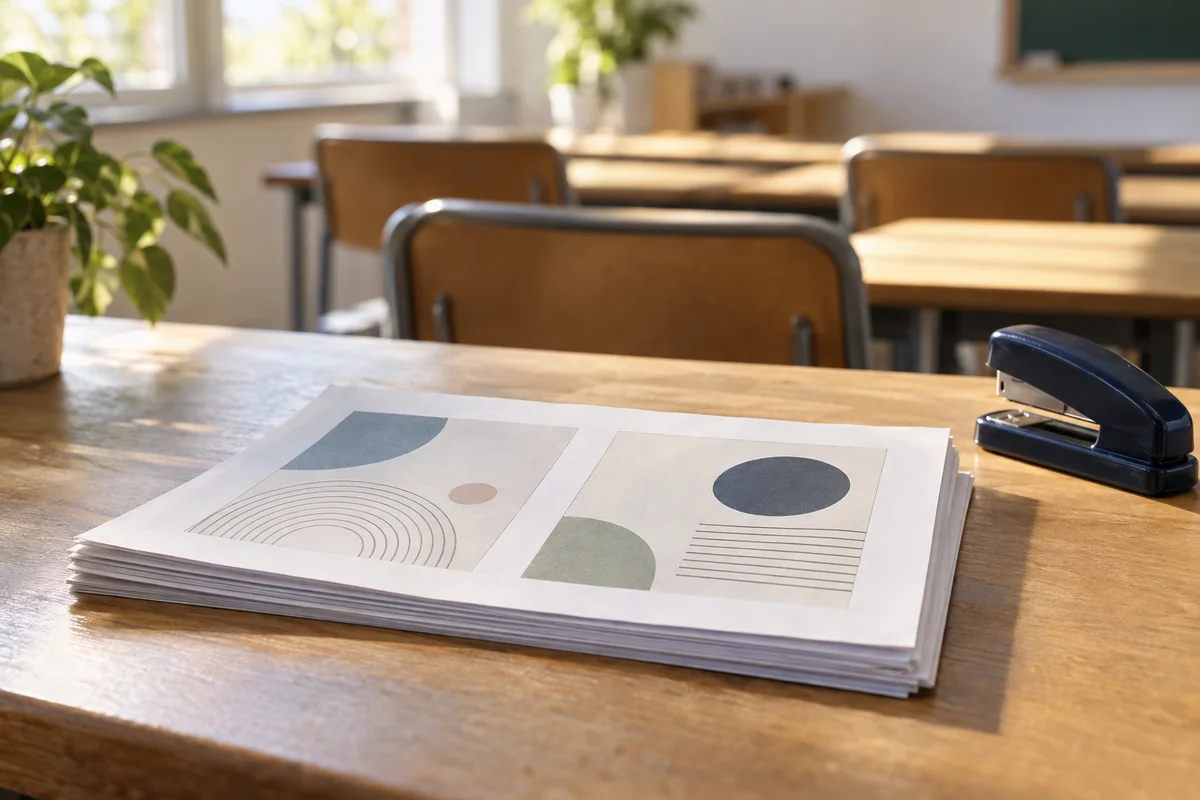
Focused on one task, with a clearer path from start to finish.
Choose pages, order, or output settings for the document you need today.
Use the preview, processing summary, or output checks available in the tool.
Your chosen documents are read and processed in this browser session.
Save a new file when processing finishes, in the format provided by your tool.
Each operation creates a new result without overwriting your originals.
Use a computer, tablet, or phone. File and page limits are listed in the tool.
No account, no installation. An easier flow for everyday documents.
Choose the PDF whose pages should share a printed sheet.
Select two or four pages, paper size, orientation, margins and reading order.
Review the composed pages; print the downloaded PDF at one output page per sheet.
Practical instructions, file limits, and what to check in your result.
When a document is meant to be read as a handout, one source page per printed sheet can be unnecessarily bulky. This tool creates a new PDF with two or four source pages arranged on each output page. Choose a paper size, orientation, outside margin, and gap between page cells. The source content is fitted proportionally inside each cell, so the page is not stretched to fill an arbitrary rectangle. The result can then be printed or shared as a compact reading copy.
This is often called 2-up, 4-up, or N-up layout. It is different from merging files, which normally places complete pages one after another. It is also different from resizing each source page to a smaller paper size. Here, several page appearances occupy one new page together. For example, five source pages become three output pages in two-up mode, or two output pages in four-up mode. Unused cells on the last sheet remain empty.
Add the PDF you want to arrange. Select two pages per sheet and choose the paper you will actually use, such as A4 or Letter. Landscape paper often works well for two portrait pages because each page receives a taller cell. Set the outside margin and the space between cells, then process the document. Inspect the preview before downloading. The first eight output pages are shown, so reopen the saved file to check the rest of a longer document.
Read the smallest text you expect someone to use. A page that looks tidy at a glance can contain footnotes that are too small for comfortable reading. If a dense report does not work at two-up size, use larger paper or keep one source page per sheet through your normal print workflow. There is no benefit in saving paper when the resulting handout is difficult to read or annotate.
Four-up mode uses two columns and two rows. In the usual order, the first source page occupies the upper-left cell, the second the upper-right, then the third and fourth fill the lower row. Selecting reverse order changes the order within each row, which may be useful for material intended to be read from right to left. It does not reverse the entire document or turn the pages into a folded booklet sequence.
A short presentation with large headings can work well as a four-up handout. A technical report with small tables usually needs more caution. Consider the intended reader, viewing distance, and whether blank space for handwritten notes is required. The gap control separates the cells but does not add dedicated ruled note areas. A border can make each cell easier to identify, especially when the source pages have large white margins.
The available output papers are A4, Letter, and A3. Choose the same paper in your printer settings after downloading. The margin is measured from the outer edges of the sheet, and the gap lies between neighboring cells. Both accept zero to fifty millimeters, but a combination that leaves too little space is rejected. Increasing these measurements decreases the area available to the source pages, so their content becomes smaller.
Many printers cannot print all the way to the physical edge. A zero-margin PDF does not remove that hardware limitation. Use a modest outside margin and print one test sheet when placement matters. If the source already includes wide margins, those margins are part of its visible page and are fitted into the cell too. You can prepare a separate cropped copy first if excessive whitespace makes the content too small, then check that cropping has not hidden useful notes.
Source page content is embedded into the new PDF page and scaled geometrically. It is not deliberately rasterized into a screenshot for this operation. Existing vector lines and text can therefore remain sharp when viewed closely or printed, subject to the original document's quality and font information. A low-resolution scan remains a low-resolution scan: placing it in a smaller cell cannot restore details that were never captured.
Text extraction order from the composed file may not match the natural reading order of the cells. A layout suitable for printing is not necessarily the best accessible reading copy. The output does not promise to retain document tags, bookmarks, or every navigation feature from the original. Keep the original document available when readers need its full-size pages, accessibility structure, or established references. The compact version can serve a separate purpose without replacing that source.
Yes, the layout uses each page's visible boundary and normal right-angle rotation when fitting it into a cell. A portrait A4 page and a rotated Letter page can be placed on the same output sheet. Each is scaled independently while retaining its own proportions. This means the apparent text size can differ between neighboring cells if the source dimensions or margins differ significantly.
Check mixed documents carefully. A very wide diagram may leave unused vertical space, while a narrow page may leave horizontal space. The tool centers the content within its assigned cell and does not stretch it to eliminate those gaps. If a consistent visual scale matters more than fitting every page, prepare the source pages to a common size first using the resize tool, and inspect a representative sheet before processing a large batch.
No. A folded booklet needs an imposition order that places distant pages together so they fall into sequence after folding and binding. Ordinary two-up layout follows the source order, with only the selected within-row direction change. Folding its output in half will not generally produce a correctly ordered booklet. Choose a workflow designed for booklet imposition when saddle stitching or folded signatures are your goal.
Duplex printing is another separate setting. This tool produces the page layouts, but your printer decides whether consecutive output pages go on the front and back of a sheet. The appropriate flip edge depends on paper orientation and the printer's driver. Print a small test containing recognizable first and second output pages before sending a complete handout run. That quick check can prevent a stack of upside-down reverse sides.
A common cause is applying multiple-pages-per-sheet settings twice. If you have already created a two-up PDF here, the printer should normally print one output PDF page per physical sheet. Choosing two pages per sheet again in the print dialog places two already composed pages on each sheet, producing four original pages at a smaller size. Check the print preview for the actual number of visible source pages.
Also confirm paper size, orientation, and any fit-to-printable-area setting. A mismatch between A4 output and Letter paper can trigger another scaling step. Select actual size only when the content fits inside your printer's printable area; otherwise review the driver's fit behavior. The saved PDF provides stable page geometry, but it cannot control every printer's margins, scaling defaults, or duplex options.
Use one unencrypted PDF up to 30 MB and one hundred pages. Pages with interactive forms, annotations, or links are rejected rather than silently dropping those features during composition. Unusual unsupported page geometry also produces an error. If a file contains such features, obtain a suitable print copy from its author or use an appropriate reader workflow, then inspect that copy before arranging it here.
Processing takes place in your browser; your selected document is not uploaded for conversion. The website still loads its code and supporting resources. You can cancel a job or clear the file before starting again. After downloading, check the output page count, the order in each row, the final partially filled sheet, and the smallest text. For a printed handout, one real test sheet is the most useful final confirmation of readability and placement.
Choose a tool for the next step and review each output.
No account. No app to install.
Choose your files, adjust the settings, and download the result you need.
Free to use · Files processed in your browser