Settings that fit your task
Choose pages, order, or output settings for the document you need today.
Free online PDF tool
Arrange pages for a folded booklet with checked sheet order, blank padding and left or right binding.
Free to use. No account. Files processed in your browser.
Processed in your browser
Arrange pages for a folded booklet with checked sheet order, blank padding and left or right binding.
Add one PDF
Up to 30 MB and 100 pages per file.
No PDF selected.
Pages are padded to a multiple of four and nested as one folded booklet. Print the result at one output page per sheet side, landscape, using short-edge duplex. For manual duplex, test a sheet before refeeding; printer stack order varies. No professional creep or bleed compensation.
Creates a landscape print copy, with two source pages per side and four per sheet. Print one output page per side; do not apply booklet layout again. Forms, links, annotations, signatures and certified documents are unsupported. No multi-signature, bleed or creep correction.
Clear steps and useful tools, from choosing your files to getting the job done.
Arrange pages for a folded booklet with checked sheet order, blank padding and left or right binding.
Keep reading, printing, or sharing after export. Tools produce PDFs, images, text, spreadsheets, or ZIP files as appropriate. Review important documents in your usual reader.
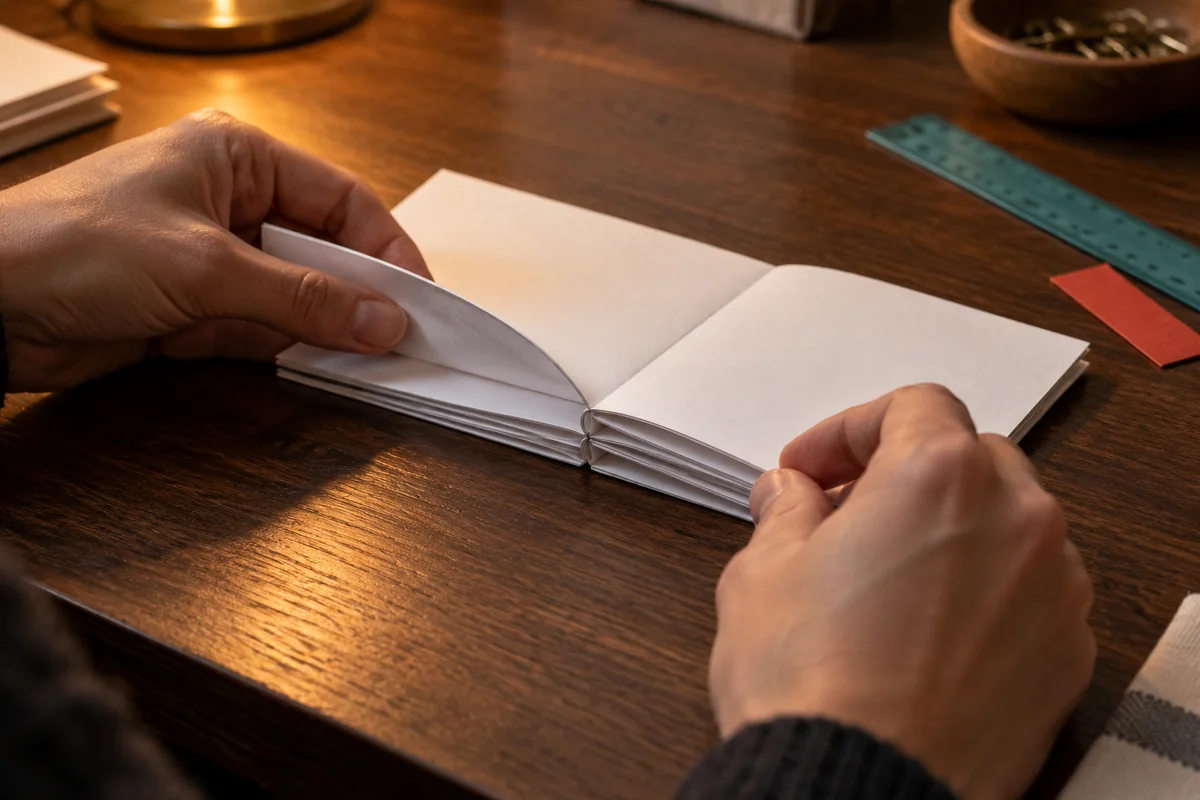
No app to install and no account to create. Use a computer, tablet, or phone, with file-size and page limits clearly listed in each tool.
Focused on one task, with a clearer path from start to finish.
Choose pages, order, or output settings for the document you need today.
Use the preview, processing summary, or output checks available in the tool.
Your chosen documents are read and processed in this browser session.
Save a new file when processing finishes, in the format provided by your tool.
Each operation creates a new result without overwriting your originals.
Use a computer, tablet, or phone. File and page limits are listed in the tool.
No account, no installation. An easier flow for everyday documents.
Choose single pages in their final reading order, including the cover.
Choose paper, binding and sides; inspect the front/back page pairs and automatic blank padding.
Print one output page per sheet side, landscape and short-edge duplex; fold a test sheet first.
Practical instructions, file limits, and what to check in your result.
This tool prepares a print copy whose page pairs become a small book after the sheets are printed on both sides, nested, folded, and fastened along the center. It suits classroom activities, event programs, short instructions, reading extracts, and personal zines. Start with a PDF containing one reading page per PDF page. The cover should already be the first page, followed by the inside pages in their normal reading order.
The downloaded document contains landscape sheet sides rather than ordinary reading pages. Two source pages fit on each output side. The front and back of one physical sheet therefore hold four reading pages. Keep your original document for screen reading and use the prepared copy for printing. There is no account requirement, and document processing takes place in your browser.
Check the order, content, and page boundaries before imposing anything. Remove an unwanted duplicate, add a missing cover, or combine chapters first. Printed page labels may differ from physical PDF positions: a cover with no visible number still occupies position one. The page-pair list in this tool uses those physical positions so that you can compare it directly with your source reader.
A scan containing two book pages in a single image needs to be separated into individual pages before this step. Otherwise, each half of the output sheet will contain an already combined spread and the text will become unnecessarily small. If you want only part of a larger document, use the split tool to create that selection first. This tool imposes every page in the selected file as one nested booklet.
Reading order and printing order serve different purposes. The outside of a folded sheet must place the last reading page beside the first one, while the reverse holds the second and second-to-last pages. Further sheets continue toward the center. This arrangement makes the page sequence work after folding rather than when scrolling through the print file.
For an eight-page document with left binding, the output pairs are 8 with 1, 2 with 7, 6 with 3, and 4 with 5. The first two output pages are the front and back of sheet one. The next two belong to sheet two. Use the labeled pair list and thumbnails together. A print preview that seems out of sequence can be correct; a folded trial sheet is the useful physical check.
Each folded sheet provides four reading positions, so the total must be a multiple of four. The tool adds only the empty positions needed to reach the next such total. A five-page source becomes eight positions, with three blanks after the last source page in reading order. A seven-page source needs one blank. A source already divisible by four needs none.
An empty half of an imposed sheet is therefore sometimes intentional. It may represent one of those added positions or an existing blank in your original file. Existing blanks are retained because they can be deliberate, especially near a cover or a chapter boundary. Review the count in the result summary. Do not let a printing application silently omit fully blank output sides, as doing so changes the front-and-back relationship.
Select the paper that will actually be loaded in the printer. A4, Letter, and A3 are supported, with a landscape sheet and a centered fold. An A4 sheet creates an approximately A5-sized folded booklet; Letter creates a half-Letter format. The outside margin and center gap reduce the space available for the source content, so a large margin can make lettering noticeably smaller.
Pages are fitted proportionally inside their allotted areas. Their aspect ratio remains intact, and different source sizes can leave different amounts of white space. This is preferable to stretching a diagram or clipping a paragraph. The selected paper size determines the dimensions of the exported PDF. Compare these dimensions with your printer setup before starting a longer job, and check small text at the final printed size.
The outside margin reserves space around the landscape sheet. The center gap separates the two content areas across the fold. Both settings accept zero through fifty millimeters. A small positive outside margin usually leaves room for the unprintable edge of a home or office printer, but the appropriate value depends on your equipment and source design.
The gap is not a professional binding compensation setting. It creates simple spacing between the page areas and does not predict how a thick stack of folded paper will shift. Start with a modest gap, inspect the preview, and print a sample before increasing it. Material placed close to the inner edge of the original page may still be awkward to read near the fold. Adjust the source design when that matters instead of expecting imposition to redesign it.
Yes. Choose right binding when your intended booklet opens from the opposite edge. The tool swaps the left and right members of every sheet-side pair. It keeps the source reading sequence unchanged, so you should supply the pages in the order your readers need rather than reverse the entire document in advance.
Right binding does not rotate text or change its writing direction. It only changes placement across the folded sheet. Inspect the cover position, the second page, and the center spread in the output before printing. This setting is useful for a document designed for right-side opening, but it cannot decide which binding direction fits a particular language, design, or mixed-language publication. Choose according to the finished object you intend to make.
The output is already imposed. In your PDF reader, print one output page on each sheet side. Match the paper size, use landscape orientation, and start with short-edge duplex flipping for the standard layout produced here. Avoid applying an additional booklet or multiple-pages-per-sheet setting, which would arrange the already arranged sides again and shrink or scramble the result.
Check the reader's scaling preview and keep both sides of a trial sheet. Fold that sheet to confirm the cover, upright text, and the relationship between front and back. Printer drivers can interpret orientation and flip controls differently. If the reverse is upside down, change the driver's flip behavior and repeat the trial. The website can verify the generated file, but it cannot inspect your physical printer's feed path or driver settings.
Use front sides only to produce a PDF with the front of each numbered sheet. Generate back sides only with the same source, paper, margins, gap, and binding settings. The sheet labels in the result let you match those two sets. Print the first set, then reload the paper for the reverse pass according to your printer's instructions.
Output sides in each set follow ascending sheet number. Some printers deliver pages face up and others face down, so the correct refeeding order cannot be assumed from the file alone. Mark an inexpensive test sheet lightly to learn which edge enters first and which face receives ink. Check the resulting pair before reloading a whole stack. If you need to reverse the output stack order, arrange it in the printer or reader after verifying the trial.
The tool embeds the visible source page content into a new PDF instead of making every page a JPEG. Ordinary text and vector drawings can therefore remain sharp at print resolution. Crop boundaries and standard quarter-turn page rotations are used when fitting a page, so a rotated or cropped source should appear in its visible orientation inside the allotted area.
This is a print layout operation, not an interactive-document transfer. Source bookmarks and document navigation are not recreated for the new sheet positions. Files containing forms, page links, or annotations are rejected to avoid silently losing those features. Signature fields and certified documents are unsupported. If you need a print-only copy of an interactive source, create and inspect that copy separately before bringing it here. Keep the original for editing and navigation.
Review the first output thumbnails and then read the complete sheet-side pair list. For larger files, only the first eight output sides are shown as thumbnails; download and reopen the PDF to inspect the remaining sides. Confirm the total number of source pages, output sides, and added blank reading positions in the summary.
Look for a missing cover, an unexpectedly tiny page, text outside the visible crop, or content that should have been removed earlier. Check that all source reading positions appear exactly once across both sides. When exporting only fronts or only backs, some source positions naturally belong to the other set. Download both sets with matching settings before evaluating completeness. A physical trial remains necessary for duplex behavior and folding.
The tool accepts one unencrypted PDF up to thirty megabytes with one through one hundred pages. Supported rotations are zero, ninety, one hundred eighty, and two hundred seventy degrees. Extremely large or unusual page geometry may be rejected. The exported file is capped at one hundred twenty megabytes. A damaged or unsupported document produces an error so that you can choose another copy and retry.
This version creates one nested, folded booklet. It does not split a long book into multiple signatures, compensate for creep, add production bleed, place cutting marks, or prepare perfect binding. Thick publications are better handled in a dedicated print-production workflow. For an ordinary handout that is stapled at a corner rather than folded through the center, use the pages-per-sheet tool instead. Pick the layout that matches how the paper will actually be assembled.
Choose a tool for the next step and review each output.
No account. No app to install.
Choose your files, adjust the settings, and download the result you need.
Free to use · Files processed in your browser